Role selection
How to allow users to select or change their national RBAC role when integrating with CIS2 Authentication.
Overview
If you're using national RBAC in your software, you'll need to allow users to:
- select a role when they first sign in
- change their role at a later point
Selecting a role
There are two methods for this, as follows:
1. Use the selectedrole scope
When you make an authentication request:
- specify the selectedrole scope, as explained in Scopes and claims
- specify prompt=login, as explained in Prompt parameter, in order to force the user to re-authenticate if they are already signed in
We'll obtain a role for the user and return it in the selected_roleid claim of the ID token in the response to your token request.
If the user only has a single role, we'll select that role automatically without prompting the user.
If the user has more than one role, the behaviour depends on how they authenticate.
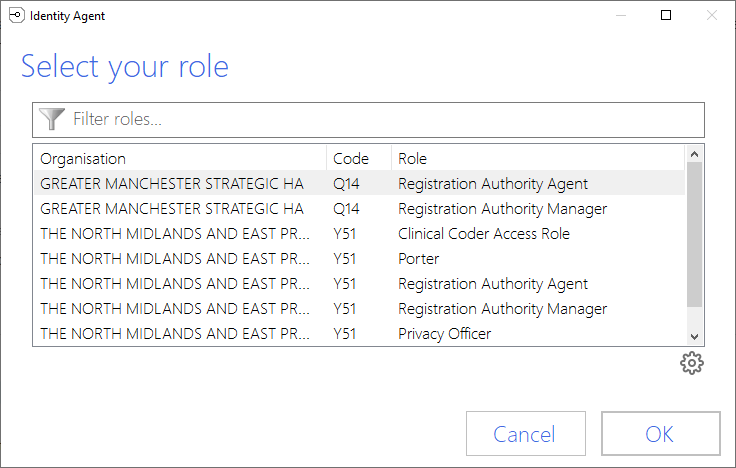
Smartcard users with Identity Agent
If the user authenticates with a smartcard, and they are still using our older Identity Agent, the Identity Agent will prompt the user to select a role when they first insert their smartcard and enter their PIN, as illustrated below:
Other authentication methods
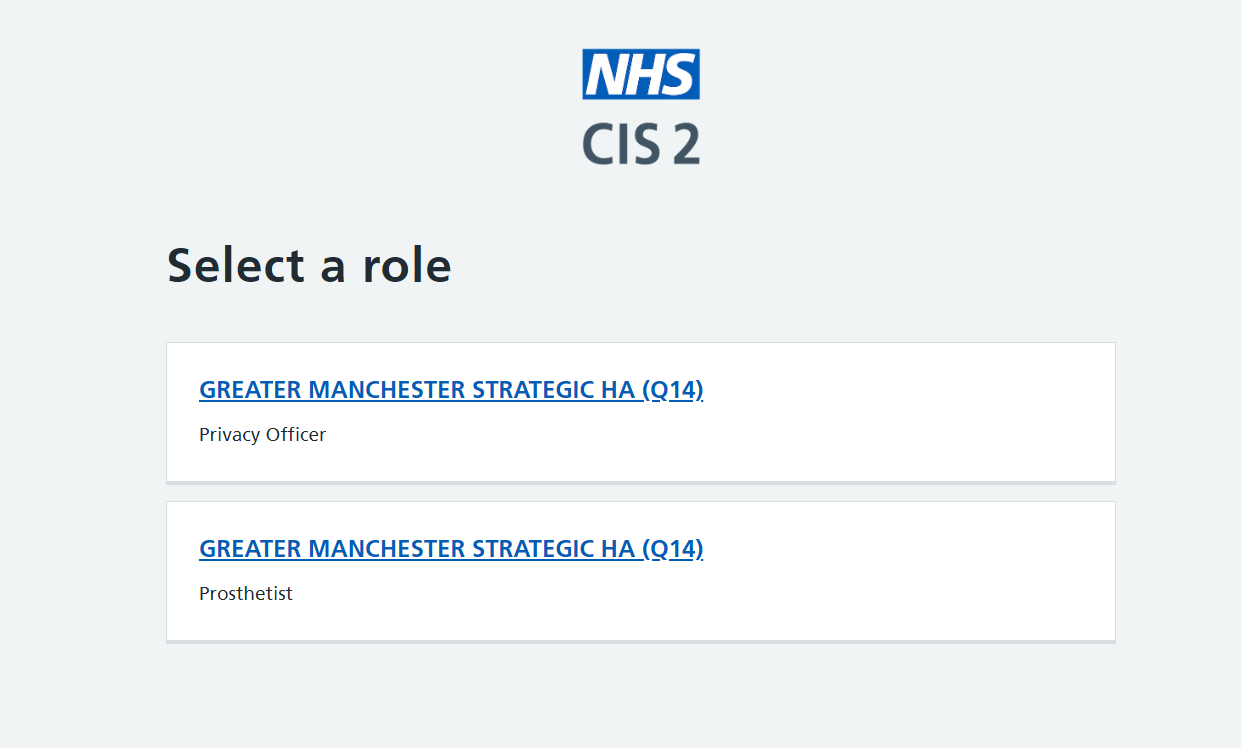
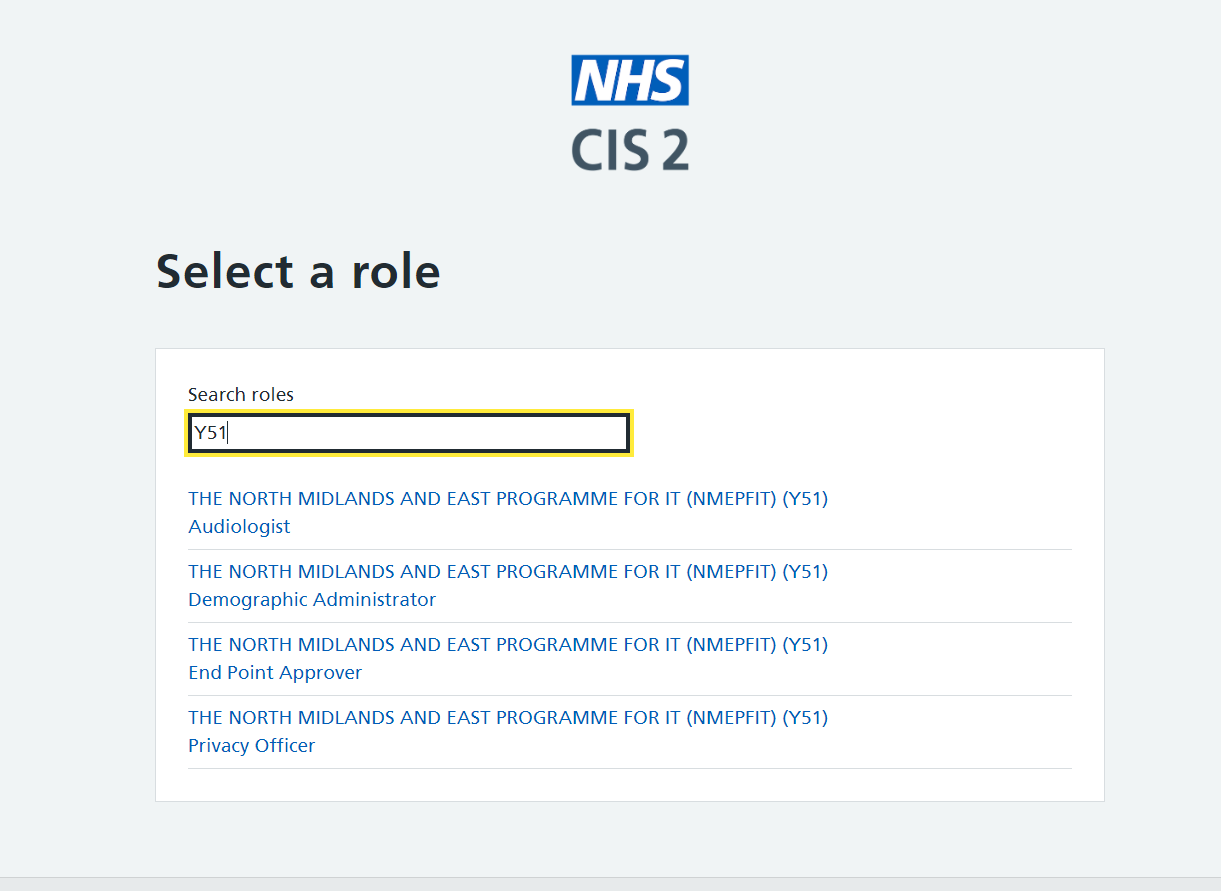
For all other authentication methods, including smartcards using Smartcard Connect, we'll prompt the user to select a role directly after authentication.
If the user has between 2 and 5 roles, we'll display a page listing all their roles, as follows:
If the user has more than five roles, we'll display a page that lists all the roles but also includes a search field, allowing the user to find the correct role more easily, as follows:
Note that:
- If the user has previously selected a role in the current session, they won't be prompted to re-select a role. To change roles, see Changing role below.
- It's possible for an authenticated user to have no roles. Your design must cater for this.
- iPad users need to be using release 1.6.0 of the NHS CIS2 iOS App or above.
2. Build your own
If the selectedrole scope method doesn't meet your needs, you can build your own role selection functionality.
You might do this if you want to enrich the process with additional information, for example to explain what a given role will permit the user to do within your application.
When you make an authentication request:
- specify the nationalrbacaccess scope, as explained in Scopes and claims
- do not specify the selectedrole scope
Next, when you receive the ID token from your token request , check if the selected_roleid claim is populated. If it is, this means the user authenticated with a smartcard using Identity Agent, and has therefore already selected a role. In this case you might choose to not prompt them to select a role again.
Then, make a user info request and inspect the nhsid_nrbac_roles claim to find the user's roles.
Finally, prompt the user to select a role.
Note that:
- It's possible for an authenticated user to have many hundreds of roles. Your design must cater for this.
- It's possible for an authenticated user to have no roles. Your design must cater for this.
Changing role
You might want to allow a user to change their role at certain points, for example to elevate their permissions within your application.
There are two methods for this, as follows:
1. Use the changedrole scope
This is very similar to using the selectedrole scope.
The only differences are:
- We always use our more modern role selection screens, even for users who originally authenticated with a smartcard using Identity Agent.
- We always prompt the user to select a role, even if they have previously selected one in the current session.
Make an authentication request, and:
- specify the changedrole scope, as explained in Scopes and claims
- specify prompt=login, as explained in Prompt parameter, in order to force the user to re-authenticate if they are already signed in
We'll obtain a role for the user and return it in the selected_roleid claim of the ID token in the response to your token request.
Note that:
- This mechanism assumes that the user has previously been authenticated. You must validate that the sub claim in the returned ID token matches that of the existing user session.
- Although this mechanism imposes a slight user experience overhead by requiring the user to reauthenticate it has the advantage of ensuring that any elevation of permissions requires the user to actually be present.
Build your own
As for selecting a role, you can build your own functionality to allow a user to change their role.
This would be similar to your functionality to select a role, except that you don't need to re-authenticate the user. You'll need to have cached details of the user's roles from when you first authenticated them.
Last edited: 28 January 2026 1:47 pm