Remove a service or multiple services
Remove one or multiple services from a session.
If you need to remove all services, cancel the session instead.
This journey will be different depending on whether you have bookings in a session and whether all cancelled bookings have provided an email address/mobile number.
1. Go to the day that you want to cancel.
2. Click on Change beside the session that you want to cancel.
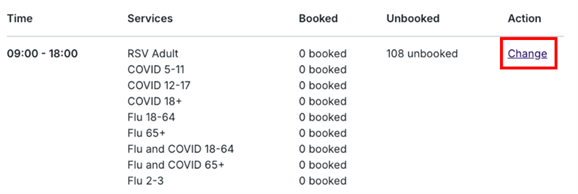
3. Select Remove a service or multiple services and click Continue.
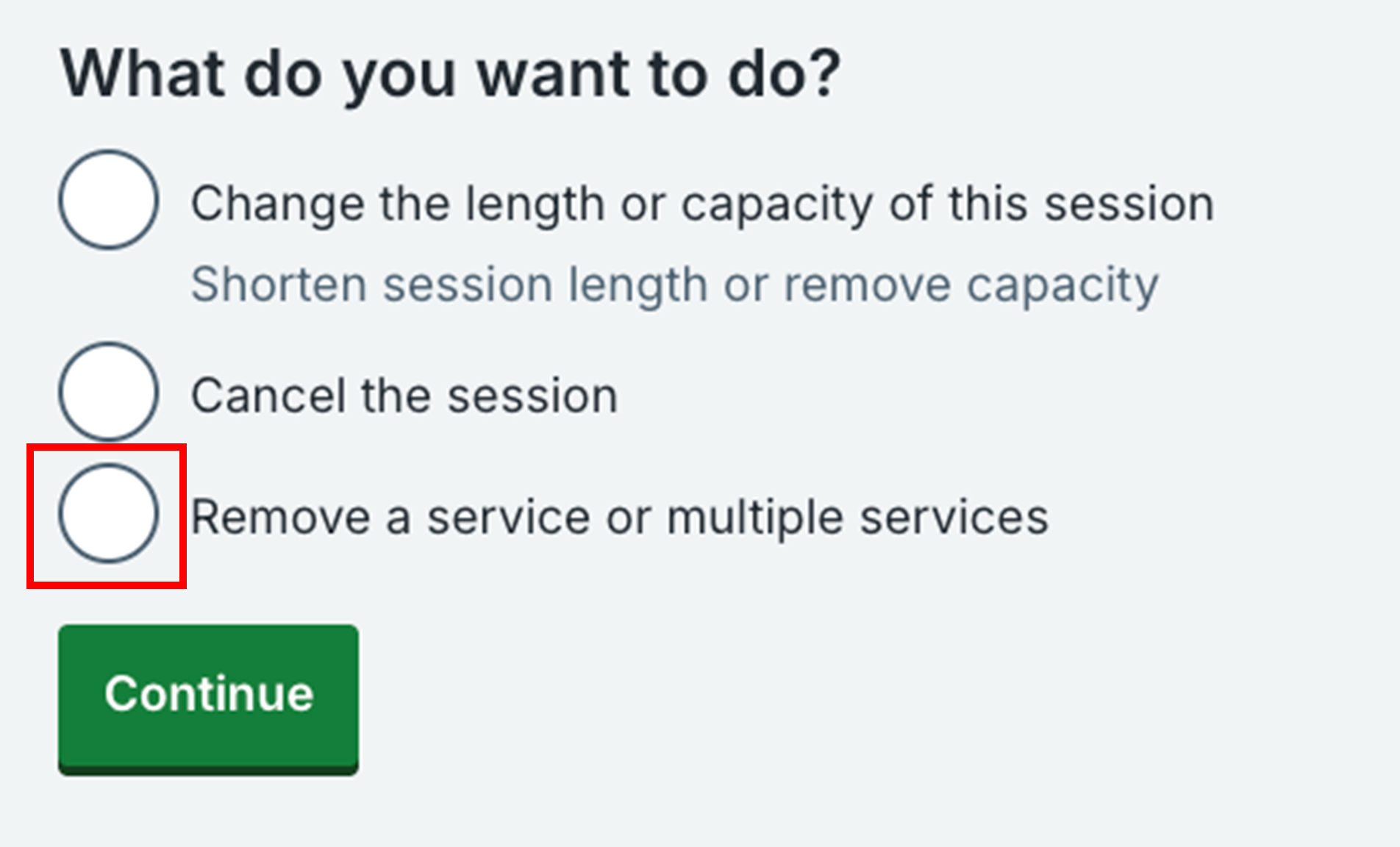
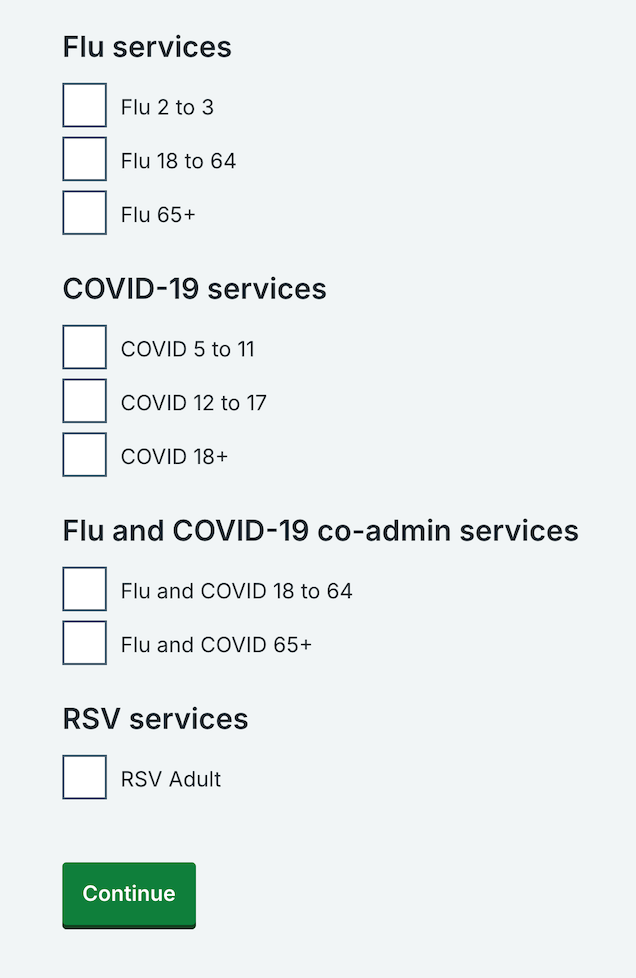
4. You will then see a list of services that are available in a session. Select the service/services you want to remove by ticking the box beside a service and click Continue.
If there are no bookings
5. You’ll be asked to confirm that you want to remove the service/services. Click Remove services to confirm or No, go back to go back to the previous screen.
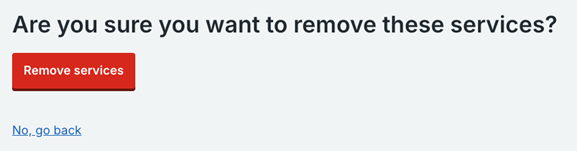
6. The service/services will be removed from the session.
If there are bookings
5. You will be shown the number of bookings that will be affected by removing the service/services and you can choose to cancel the appointments or keep them but still remove the service/services.
6. Select Yes, cancel the appointments and remove the service/services to cancel the appointments and remove the service/services or select No, do not cancel the appointments but remove the service/services to keep the appointments but remove the service/services.
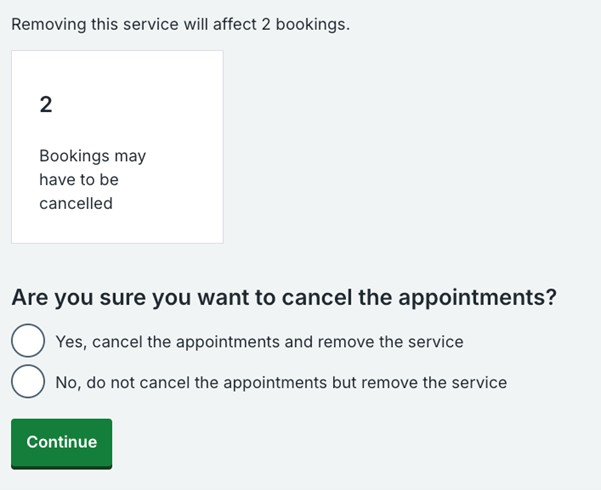
If you choose 'Yes, cancel the appointments and remove service/services'
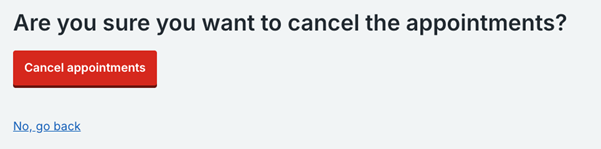
7. You’ll be asked to confirm that you want to cancel the appointments. Click Cancel appointments to confirm or No, go back to go back to the Remove services page.
8. The service/services will be removed, and you will see the number of people that will receive a notification that their appointment has been cancelled. If there are any people who did not provide a mobile number or an email address, there will be a link to click on to view the list of names. Some people may have provided a landline number.
If you choose 'No , do not cancel the appointments but remove service/services'
7. You’ll be asked to confirm that you want to remove the service/services. Click Remove service/services to confirm or No, go back to go back to the Remove services page.
8. The service/services will be removed and the appointments will appear in the scheduled list of daily appointments.
Last edited: 19 February 2026 4:04 pm