Edit appointment availability
'Availability managers' can change or delete appointment availability.
Change the length or capacity of a session
You can only reduce the length or capacity of a session. Read the guidance on how to add more availability to a date to add another session to a day.
1. Select the relevant site.
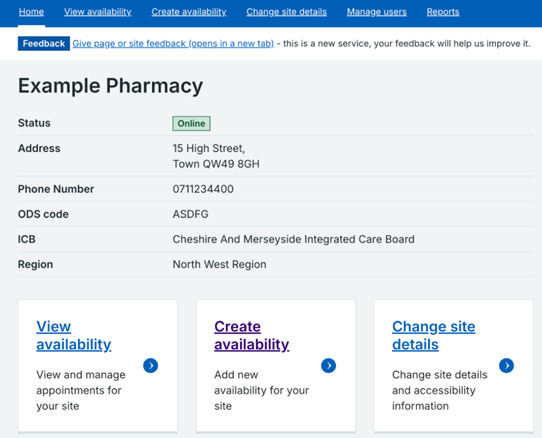
2. Click on 'View availability' in the top menu or 'View availability' at the bottom of the landing page.
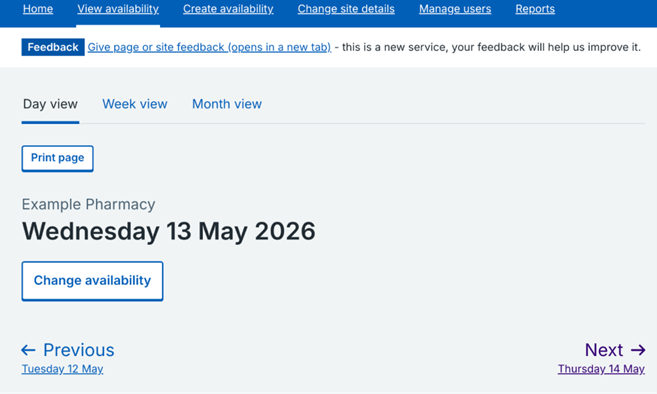
3. Click on 'Week view'.
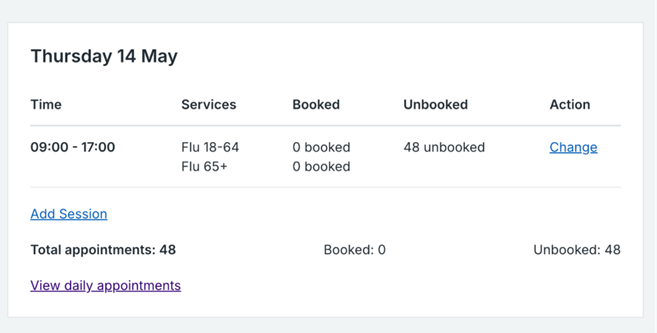
4. Find the session that you want to change and click 'Change'.
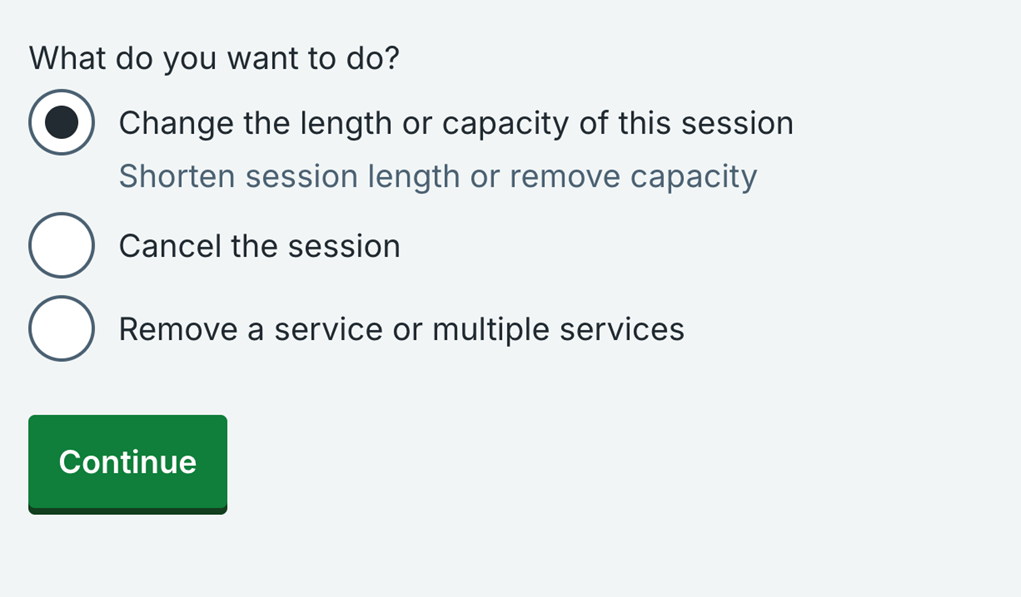
5. Select 'Change the length or capacity of this session' and click 'Continue'.
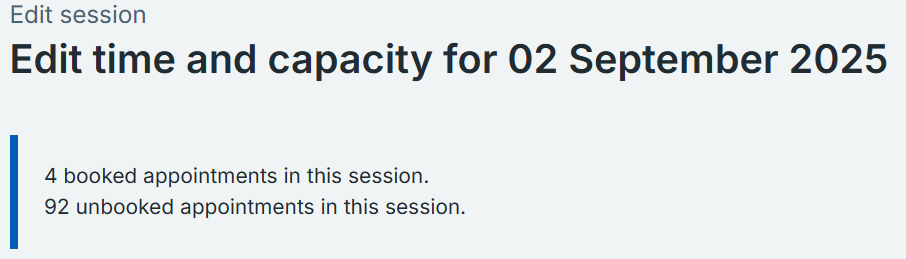
6. You will see the number of booked and unbooked appointments for this session which may be affected by reducing the length or capacity of this session.
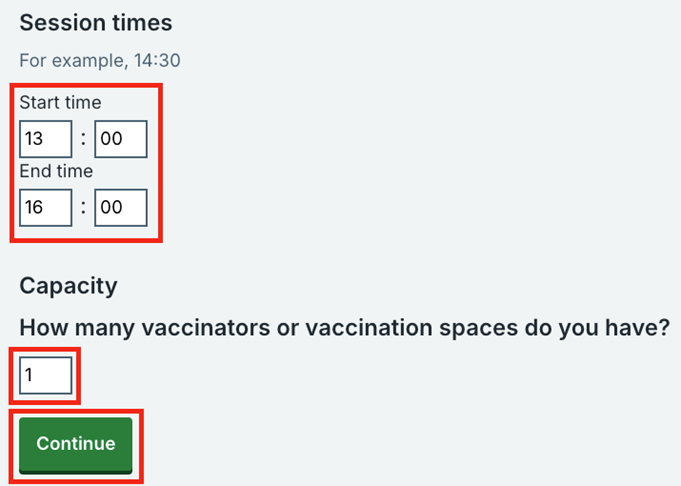
7. Edit the session times or the capacity and click 'Continue'.
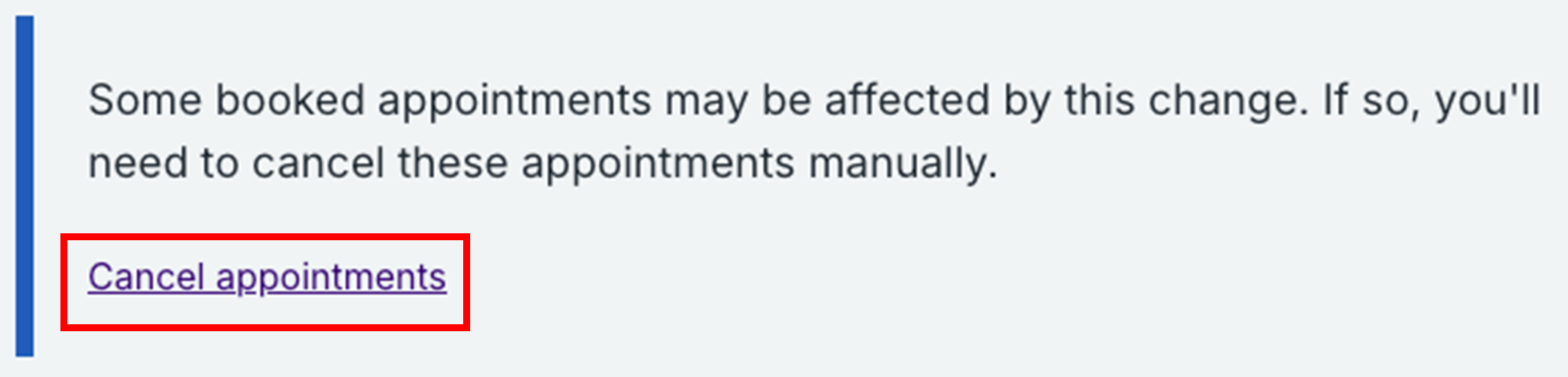
8. If any appointments are affected by this change you will see a message which says that some appointments have been affected by the change - follow from step 10 below.
If no appointments are affected by this change, you will be taken back to the week view.
9. Click on 'Cancel appointments' to view the contact details for those whose appointments you would like to cancel.
10. You will be taken to the 'Manual cancellations' screen and you can click 'Cancel' against the individual appointments if you need to cancel.
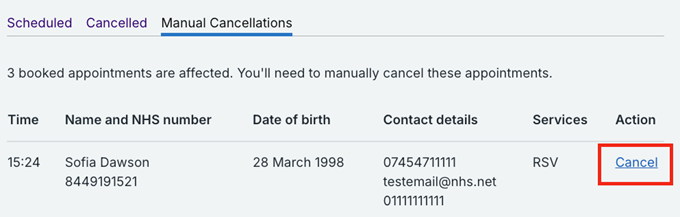
11. If the individual has provided an email address and/or a mobile number at the time of booking they will be sent a notification. The notification will inform the citizen that the site has cancelled their appointment and provide information on how to rebook an appointment if required.
12. If you do not click 'Cancel' against each appointment, the citizen will not be notified and they will still arrive for their appointment.
Remove a vaccine service
You can only remove a service from a session. Read the guidance for 'How to create more sessions' to add another session to a day.
1. Select the relevant site.
2. Click on 'View availability' in the top menu or 'View availability and manage appointments for your site' at the bottom of the landing page.
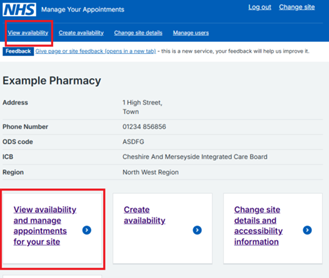
3. Find the session that you want to remove the services at.
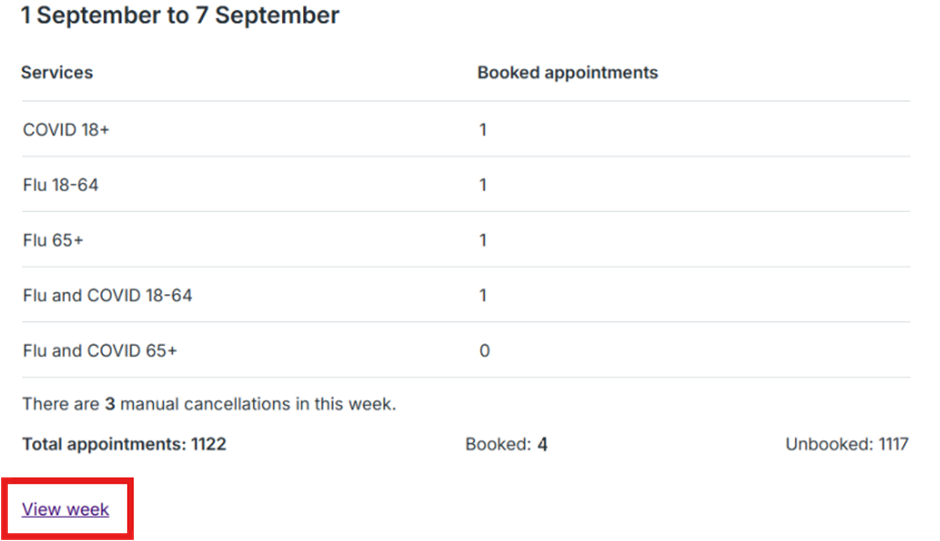
4. Click on 'View week'.
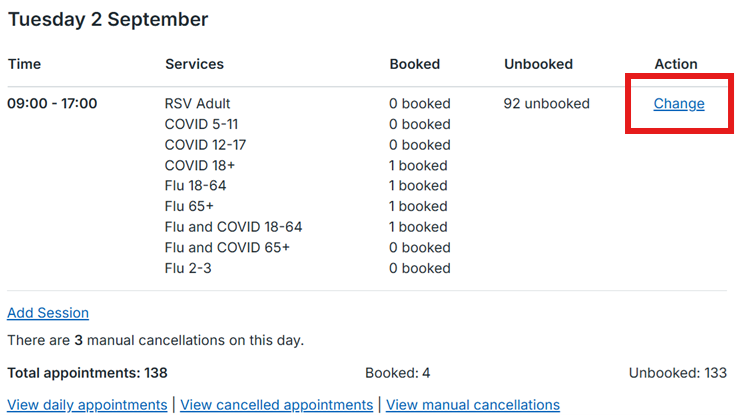
5. Click 'Change' beside the session that you want to change.
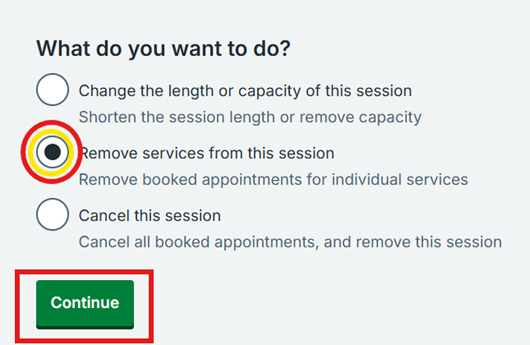
6. Select 'Remove services from this session' and click 'Continue'.
7. You will see a list of the services for the session, select the ones you want to remove and click 'Continue'.
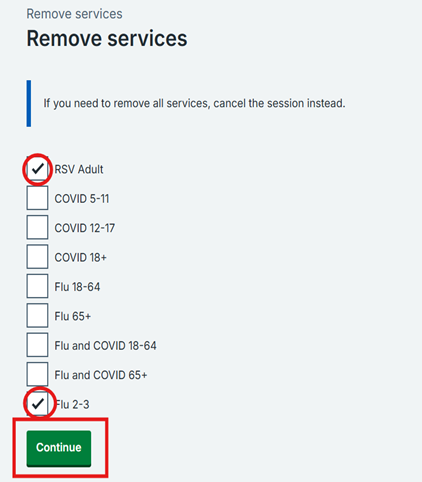
8. You will then be taken to the confirmation page that will confirm the services have been removed.
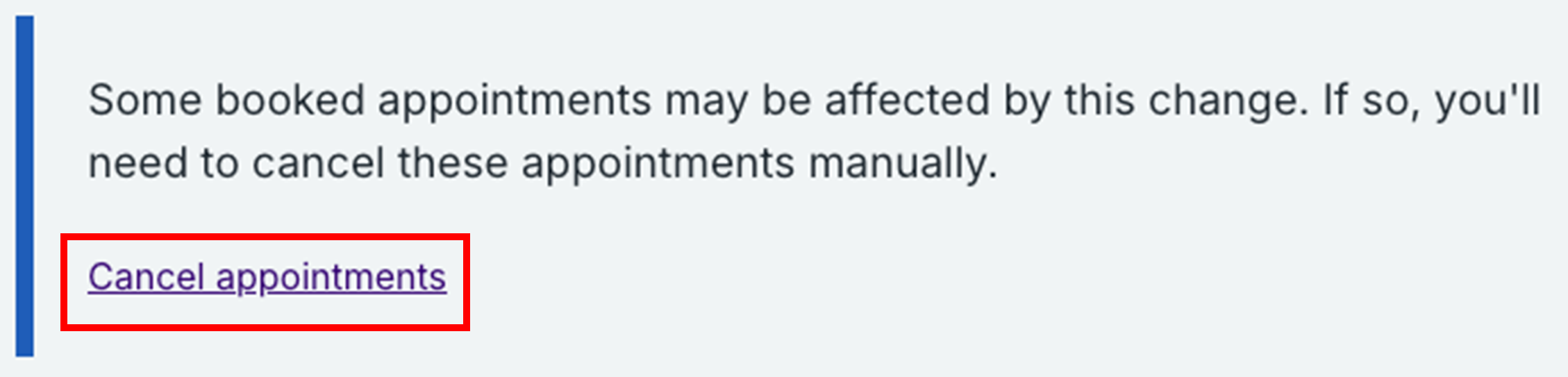
9. If any appointments are affected by this change you will see a message which says that some appointments may have been affected by the change. Click on 'Cancel appointments' to view those appointments and decide if you need to cancel them.
10. You will then be taken to the 'Manual Cancellations' screen and you can click 'Cancel' against the individual appointments if you need to cancel.
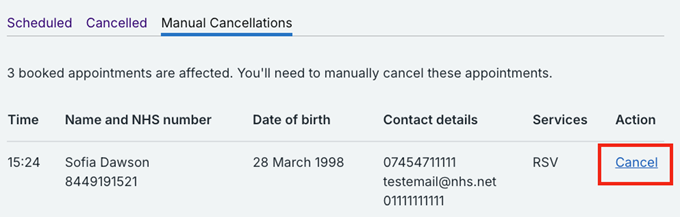
11. If the individual has provided an email address and/or a mobile number at the time of booking they will be sent a notification. The notification will inform the citizen that the site has cancelled their appointment and provide information on how to rebook an appointment if required.
12. If you do not click 'Cancel' against each appointment, the citizen will not be notified and they will still arrive for their appointment.
Cancel availability
To cancel availability, see our guidance on cancelling a session.
Last edited: 14 May 2026 12:14 pm