Part of NHS England Secure Data Environment user management guide
Activate and deactivate Stata access for user accounts
As part of using the Secure Data Environment (SDE), you may need to activate Stata access for a user’s account. This enables the user to use Stata within the virtual desktop infrastructure (VDI).
To activate Stata, a user must have both:
- an activated user account
- a Data Analyst role or both User Manager and Data Analyst role
Stata access will incur a cost. More information on charges can be found at Understanding access charges to the SDE.
Adding Stata to an account may mean the user account will need an upgrade to its assigned VDI (compute power).
If you are new to Stata, planning to use it, or need to upgrade your compute power, you can attend a drop-in session or email [email protected] for support.
Activating access to Stata
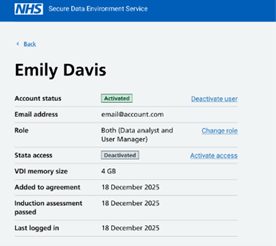
1. Select the user’s details page.
2. On the ‘Stata access’ row, select ‘Activate access’. Activated user accounts with the Data Analyst (or both User Manager and Data Analyst) role will see ‘Activate access’:
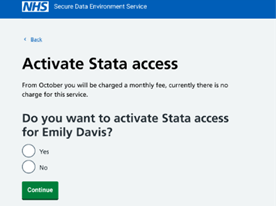
3. Select Yes and Continue or No to cancel.
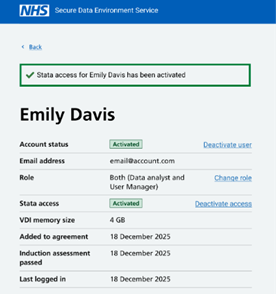
4. The banner will show that access to Stata has been activated for the user. An email notification about access is sent to the user. Users signed into the VDI at the time of the change will need to sign out and back in to view the application.
Deactivating access to Stata
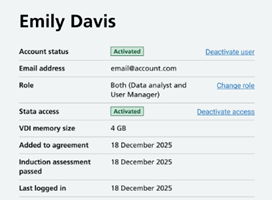
1. Select the user’s details page.
2. In the row ‘Stata access’, select ‘Deactivate access’. Users with activated Stata access will see ‘Deactivate access’.
3. Select Yes and Continue or No to cancel.
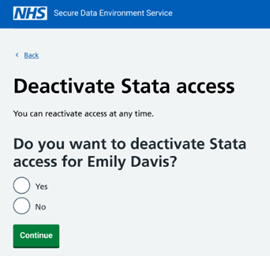
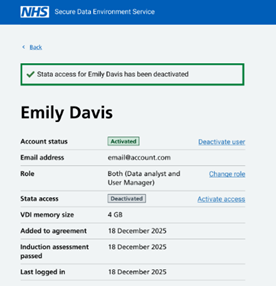
4. The banner will state that access to Stata is deactivated. The user will receive a notification email that access has been deactivated.
Last edited: 20 April 2026 10:26 am