Passkeys
Information about using NHS CIS2 Authentication with passkeys, which require fewer steps to log in for compatible devices than other authenticators.
What is a passkey?
Passkeys are a technology that allows authentication without passwords.
It works by using biometrics or the device's screen lock passcode. Most users simply tap with their fingerprint or look at their device’s camera to authenticate.
As an option for CIS2 authentication, passkeys enable health and care professionals to log in with fewer steps and can reduce context-switching.
Passkeys are currently enabled for NCRS, eRS, MESH and CSMS
Passkeys are currently being used to access national services by organisations across health and care settings.
Passkeys are available now for all organisations to use. If you would like further information please contact the NHS England Identity and Access Management team at [email protected]
- A strong authenticator that's more resistant to scamming
- Simple and convenient steps to log in
- No need to buy new technology - passkeys work on a user's smartphone
- Provides NHS organisations with options to promote use of an authenticator across Apple and Google devices, opening options on different operating systems
How to use passkeys
Go to the national clinical information system that you wish to access. Some systems will automatically send you to the NHS CIS2 authentication page. Others may require you to select a login button.
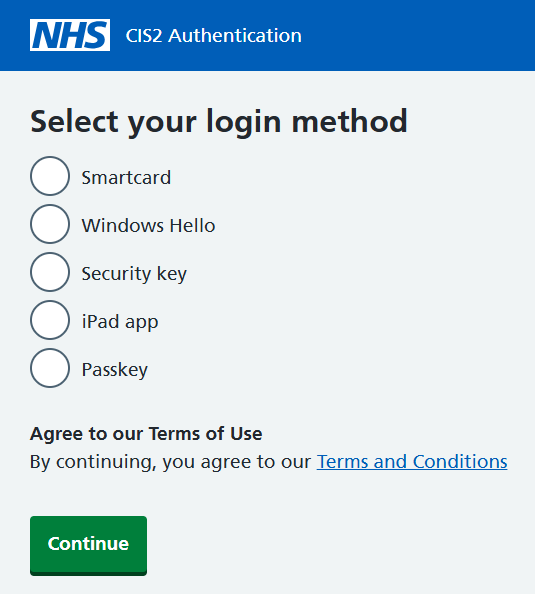
Select 'Passkey' and then 'Continue'.
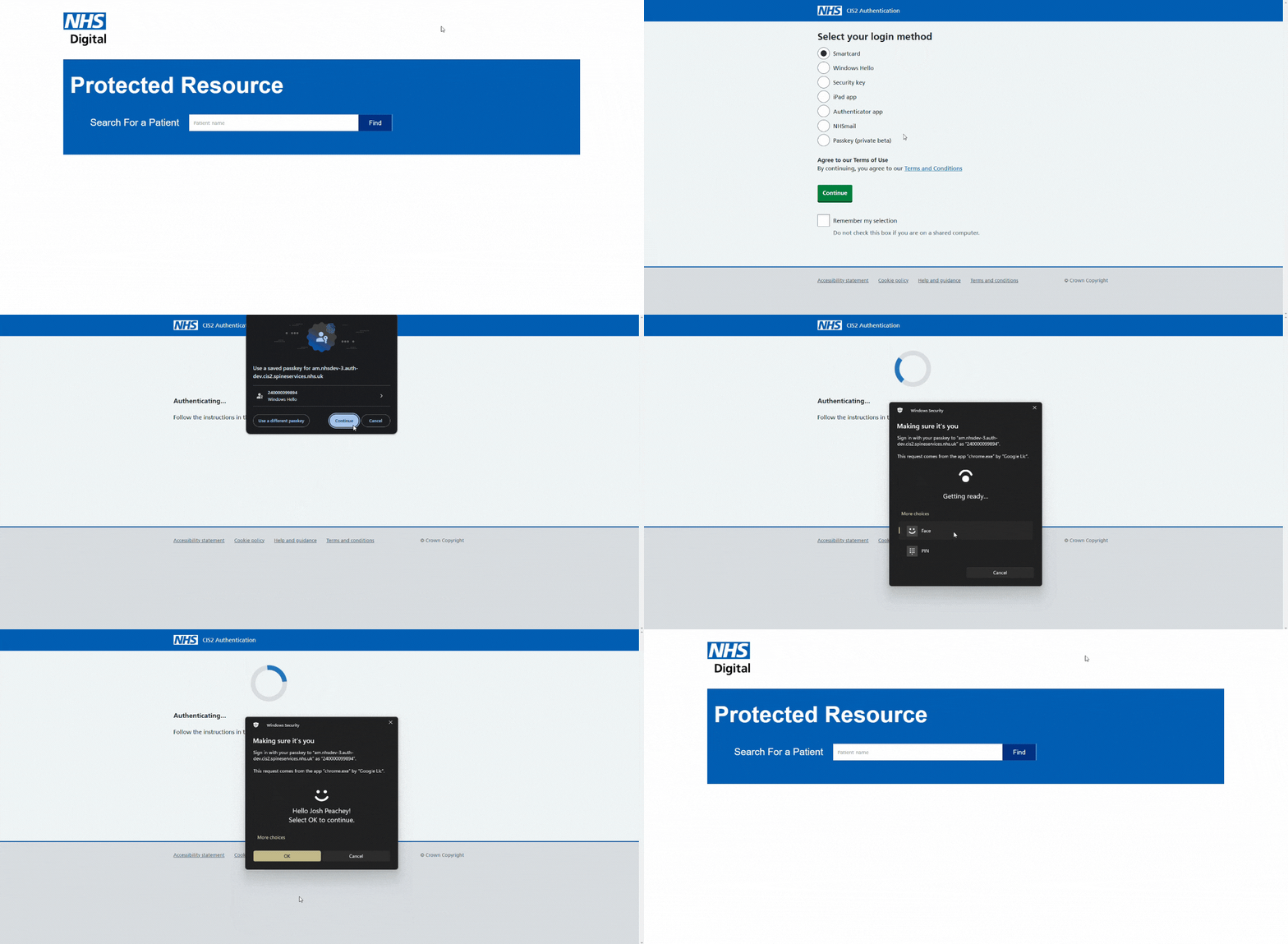
Follow the instructions on your device. The instructions you see will depend on your device. You can see below an example of the login steps on a Windows machine.
Role selection
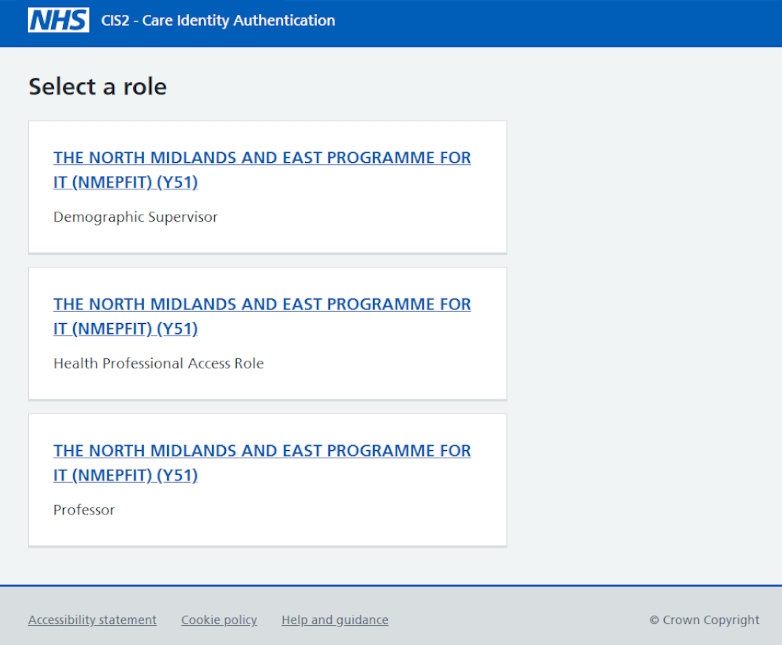
You may be shown a screen to select the Role you want to use. This is dependant on the application you are using and the number of roles that you have assigned to you.
If you have:
- only 1 role, that role is selected for you and and won't see the Role Selection page
- 2 - 5 roles, they will be listed for you to select from. Select the role you want to use.
- more than 5 roles, they will be listed for you to select from as well as a search box to filter the list
Once you have found the appropriate role, select the role you want to use.
Troubleshooting
If the face scan does not work, you will be prompted to enter your Windows Hello PIN. If you have forgotten the PIN you will need to talk to an RA who will deregister your Windows Hello device and register your Windows Hello device again.
Check you are using a power source or have more than 20% battery on your device. If the battery drops below 20% battery saver mode will automatically start which affects the use of passkeys.
Help for IT teams
Guidance by operating system
Using passkeys with CIS2 Authentication can look different based on operating system.
With any of the operating systems below, if the device is managed by your estate, you'll need the ability to use passkeys enabled in your mobile device management. This may be as simple as allowing Windows Hello as an authentication method, or enabling iCloud Keychain to be used on Apple devices.
Windows
To use passkeys on Windows devices, you will need at minimum Windows 10 or Windows 11.
Both versions allow the use of Windows Hello as a sign-in method. In our current implementation, using passkeys for Windows leverages Windows Hello.
Apple
To use passkeys on Apple devices, you will need at minimum:
- iOS 16
- iPadOS 16
- macOS Ventura
Read more about using passkeys to sign in to websites and apps on iPhone.
To use passkeys on Google devices, you will need at minimum Android 14.
Procurement
Using passkeys with CIS2 Authentication only requires that the device used is compliant.
NHS organisations looking to use passkeys for all staff members should consider:
- the device mix present in their estate
- whether they have a BYOD policy
The current passkey offering is a synced passkey, which will rely on iCloud Keychain or Google Passwords for iOS and Android devices.
Test passkey registration
You can test passkey registration using this link.
You'll need to enter a test name into the input box. You should be able to leave the advanced settings as they are, but the following must be set:
- User Verification: required
- Discoverable Credential: required
These would be the correct settings for a test using the name Clinical_user_1.
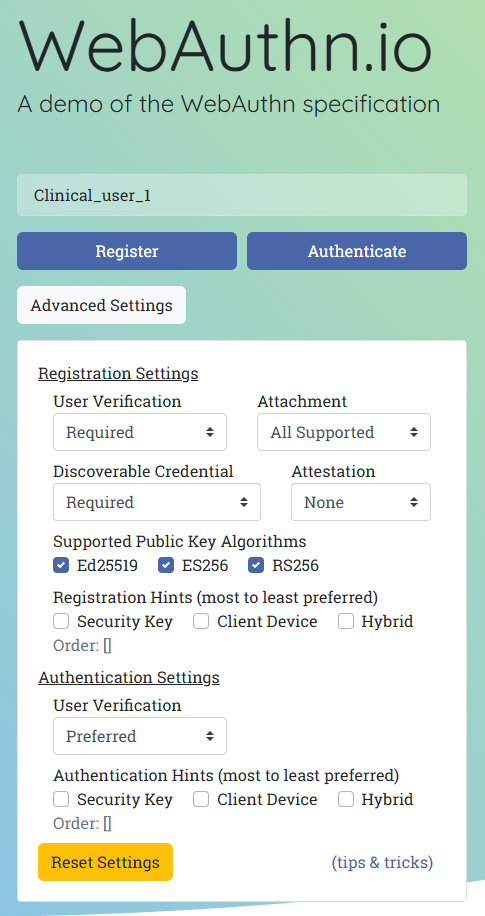
Select 'Register' and follow the instructions on screen. You should see a success message, then you'll be asked to select 'Authenticate' to perform the test.
Support
You can get support by going to the NHS Digital Customer Portal or emailing [email protected]
Contact us
There are lots of features we are working on and considering for the future. We'd love to hear what you think.
To suggest new features or improvements, contact us by emailing [email protected]
To give us feedback on your experience with passkeys, please take our short survey.
Last edited: 30 March 2026 12:21 pm