Change the length or capacity of a session
Reduce the length of a session or the number of vaccinators.
This journey will be different depending on whether you have bookings in a session and whether all cancelled bookings have provided an email address/mobile number.
Change the length or capacity
1. Go to the day that you want to change.
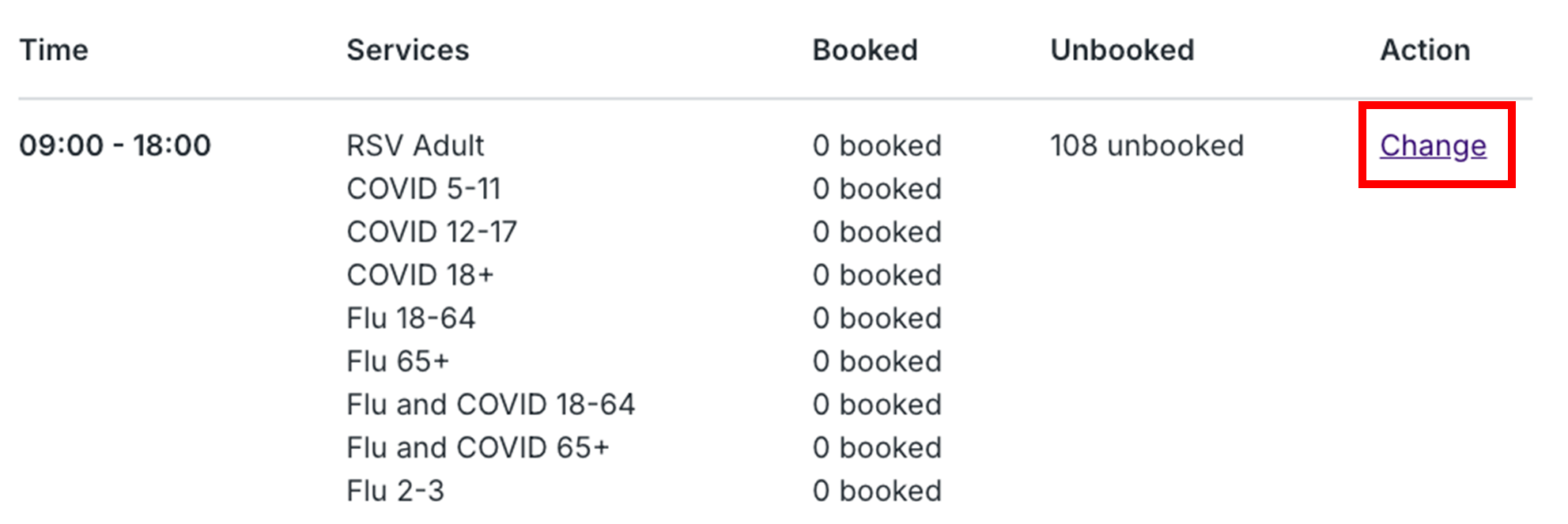
2. Click on Change beside the session that you want to change.
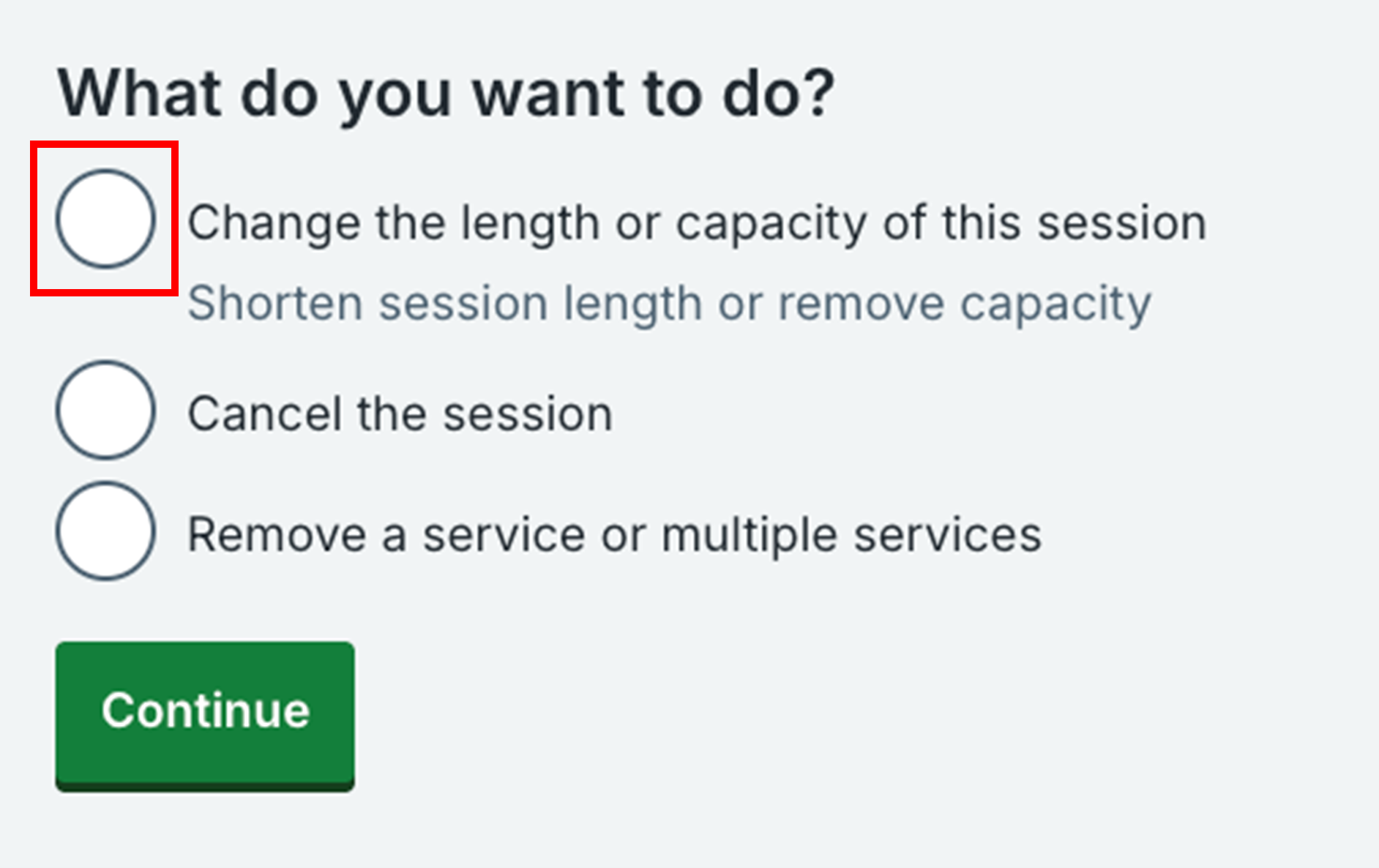
3. Select Change the length or capacity of this session and click Continue.
4. Change the time and/or the number of vaccinators/vaccination spaces and click continue.
If there are no bookings
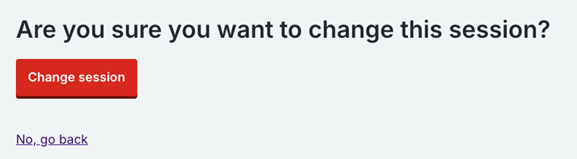
5. You’ll be asked to confirm that you want to change the session. Click Change session to confirm or No, go back to go back to the previous screen.
6. The new time and/or capacity will be displayed.
If there are bookings
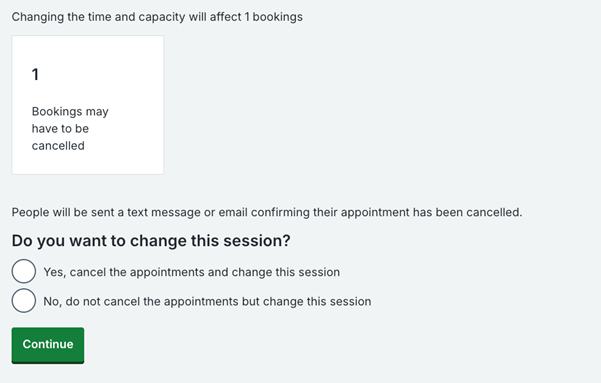
5. You will be shown the number of bookings that will be affected by reducing the time and/or capacity and you can choose to cancel the appointments or keep them.
6. Select Yes, cancel the appointments and change this session to cancel the appointments and change the length and/or capacity or select No, do not cancel the appointments but change this session to keep the appointments and change the length and/or capacity.
If you choose 'Yes, cancel the appointments and change this session'
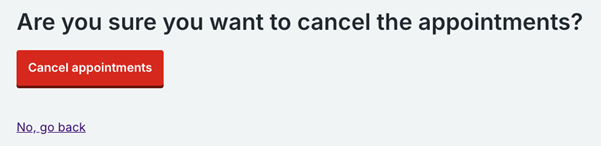
7. You’ll be asked to confirm that you want to cancel the appointments. Click Cancel appointments to confirm or No, go back to go back to the edit time/capacity screen.
8. The new time and capacity will be displayed and you will see the number of people that will receive a notification that their appointment has been cancelled. If there are any people who did not provide a mobile number or an email address, there will be a link to click on to view the list of names. Some people may have provided a landline number.
If you choose 'No , do not cancel the appointments but change this session'
7. You’ll be asked to confirm that you want to change this session. Click Change session to confirm or No, go back to go back to the start of the change journey.
8. The new time and capacity will be displayed and the appointments will appear in the scheduled list of daily appointments .
Last edited: 15 January 2026 3:54 pm