Cancel appointments
Availability managers can cancel appointments at your site.
How to cancel an individual appointment
- Select the relevant site.
- Click on 'View availability' in the top menu or on the 'View availability and manage appointments for your site' at the bottom of the landing page.
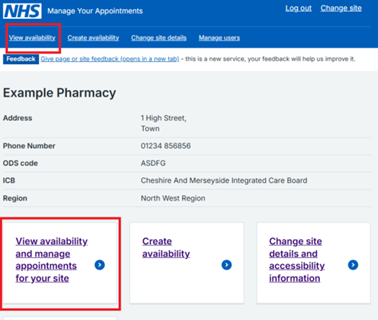
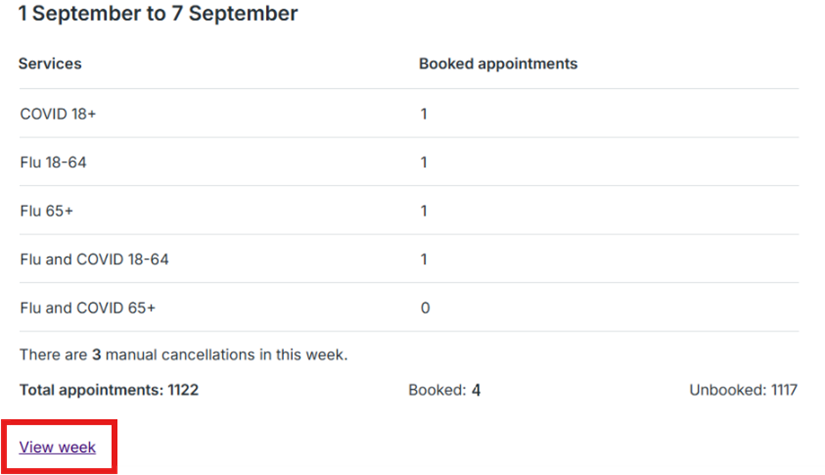
- Find the week when the appointment is scheduled for.
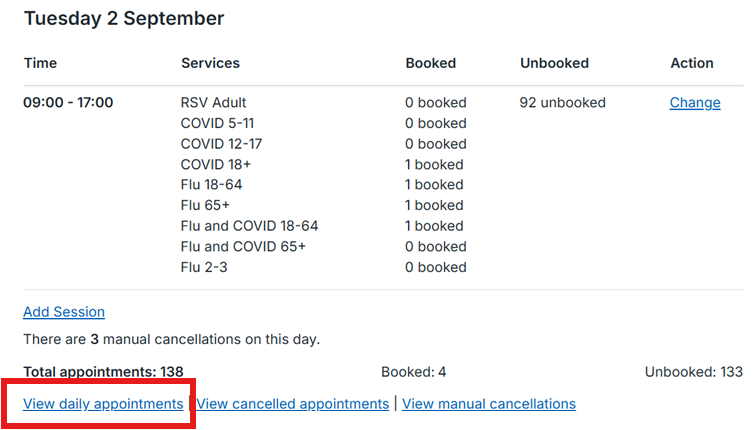
- Click on 'View week' and then find the date of the appointment you want to cancel.
- Click on 'View daily appointments'.
- Find the appointment that you want to cancel and click 'Cancel' in the Action column.
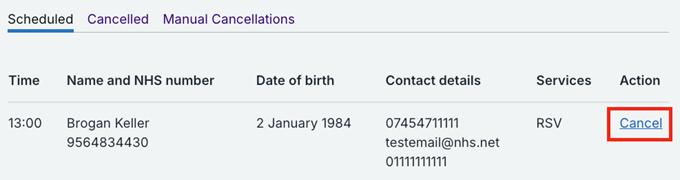
- Double check that you are cancelling the correct appointment.
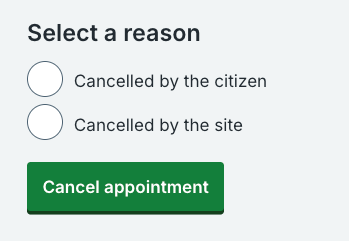
- Select why the appointment is being cancelled and then click on ‘Cancel appointment’.
- The appointment will move to the 'Cancelled' tab on the relevant date.

- If the individual has provided an email address and/or a mobile number at the time of booking they will be sent a notification. The notification will inform the citizen that their appointment has been cancelled and provides information on how to rebook an appointment if required.
Note: Some citizens might not provide any contact information, so there is no way to tell the patient about the cancellation. They will most likely turn up for their appointment.
Cancelling more than one appointment at a time
- You can cancel a day if you need to cancel appointments in bulk. We're currently developing other ways for sites to bulk cancel and they will be available in a future release.
Rescheduling appointments
- Manage Your Appointments does not have the functionality for sites to reschedule appointments. This is something that is being developed for future release. Citizens are able to reschedule their own appointment on the National Booking Service.
Last edited: 3 December 2025 12:57 pm