Cancel a day
Cancel one day’s worth of availability. You can choose whether to cancel the appointments or keep them.
Important information
By cancelling a day, you can choose to cancel the day and the bookings or you can stop taking bookings and keep the existing appointments.
Cancel a day
1. Select the appropriate site.
2. Click on 'View availability and manage appointments for your site' on the site page or 'View availability' in the top menu.
3. Find the day that you want to cancel by selecting the appropriate date.
4. Click on 'Cancel day'.

5. Select 'Yes, I want to cancel the appointments' to cancel the appointments and the day’s availability or select 'No, I don’t want to cancel the appointments' to cancel the action and return to the previous screen.
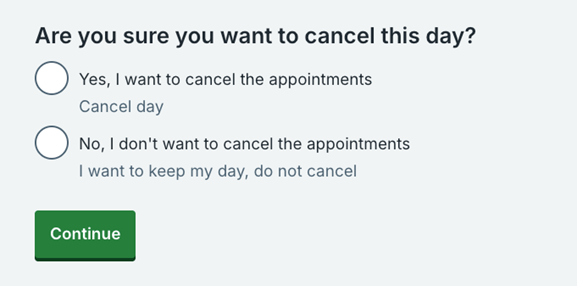
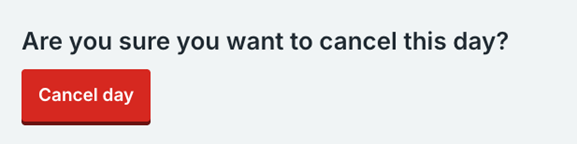
6. If you click 'Yes, I want to cancel the appointments', click 'Cancel day' to cancel the day and the appointments.
7. You will then see a screen which confirms how many appointments have been cancelled and that the day’s availability has been cancelled.
Last edited: 13 October 2025 9:23 am