Smartcard printer setup and care
Guidance on Magicard printer configuration and drivers, and how to clean and replace rollers and print heads.
Smartcard printing in Care Identity Management is supported by the DoH 300 (V2) smartcard printer, manufactured by Magicard.
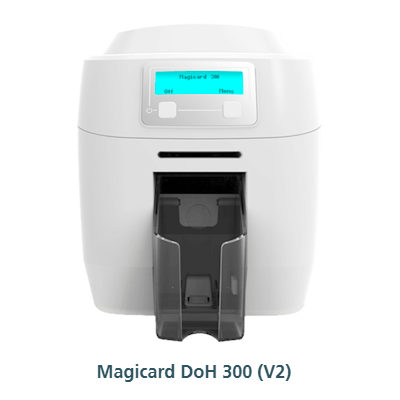
- also known as the DOH 300
- 1 USB connection
- in-built Elatec smartcard reader
DoH (V2) and Datacard SP35 printers are no longer supported.
See the Magicard support page for more information.
Printer setup checklist
These are the main steps to setting up a working smartcard printer:
Printer installation
Switch on the printer, but only connect the USB cable(s) to the workstation once it has logged into Windows. The smartcard printer drivers are installed automatically via Windows Update. If automatic Windows updates are disabled, download the driver and manually install it using the .inf file before connecting the printer to the RA Workstation.
To check that the printer has been successfully installed, go to the printer status section.
Printer status and information
The printer configuration tool contains important information about your printer. You can view it by following these steps:
- Click Start Menu > Settings > Devices > Printers & Scanners
- Select DoH 300 (V2)
- Click Manage and then Printing Preferences
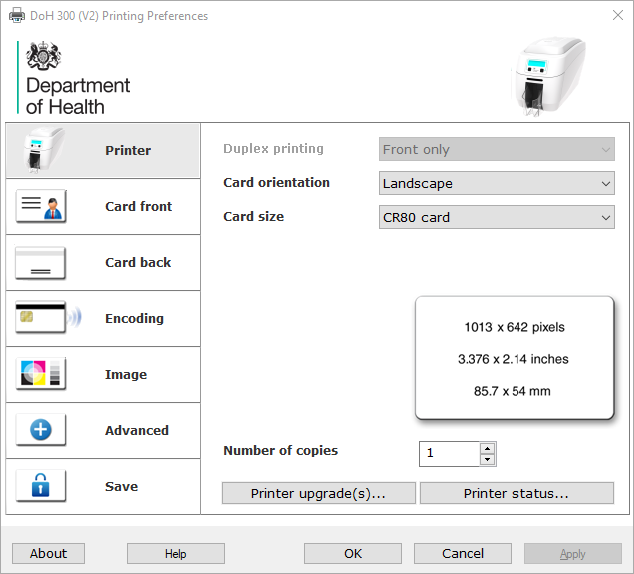
Printer status
In the printing preferences window, select Printer Status.
A green banner indicates the printer has been successfully installed and is in a connected and operational state. A red banner indicates the printer is either disconnected, powered off or is experiencing an issue, which can usually be fixed by removing and reconnecting the power cable.
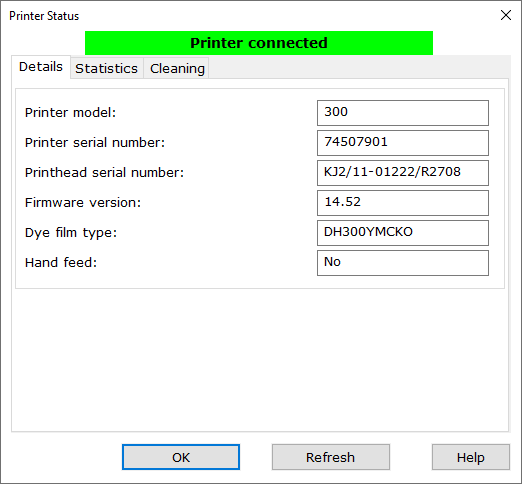
If this doesn't work, disconnect the printer USB cable(s) and go to Settings > Devices & Printers > Right click and select 'Remove Device' on all instances of the DoH 300 or Magicard printers. Then reconnect the printer USB cables to allow the printer to install. You will see a new DoH or Magicard printer appear.
Check the number of prints remaining
Printer ribbons can print approximately 300 smartcards. To check how many prints are remaining, select the 'Statistics' tab
You should see a 'Prints remaining' bar and a figure for total cards printed.
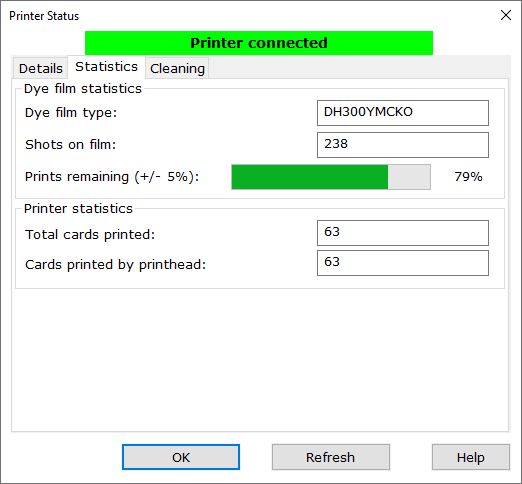
Find out how to order smartcard printers and consumables.
Cleaning frequency
Select the ‘Cleaning’ tab to see information about cleaning frequency of the printer.
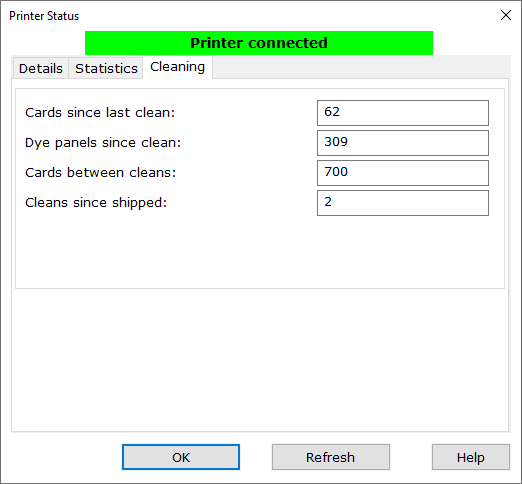
For information on cleaning your printer see the printer care and maintenance section.
DoH 300 (v2) specifications
Printer
- Driver version: v3.0.2.967
- Firmware: 15.57
- Serial number: 7xxxxxxx
Printer smartcard reader
- Name and model: Elatec TWN4 MultiTech
- Hardware ID: VID_09D8&PID_0428
- Firmware: TWN4/B1.08/NPF3.23/ M1SC1.62
Printer smartcard reader driver
- Windows 10: Elatec v5.3.0.31
- Windows 11: Elatec v5.3.0.31
Some DoH 300 (V2) use the Microsoft USB CCID Smartcard Reader (WUDF) by default - this has been raised with Elatec.
Printing method
-
Contacted: series 8 smartcards
-
Contactless: series 9 smartcards only
Important notes on printer setups
-
Microsoft Usbccid Smartcard Reader (WUDF) is a widely compatible driver which installs automatically if the manufacturer driver is not already installed or has been removed.
-
To identify a printer's in-built smartcard reader in Windows device manager, use the hardware ID from the table above. Double click on the target smartcard reader > Details tab > dropdown menu > Hardware ID.
-
The printer firmware serves as a reference solely to indicate successful testing up to the present version. Earlier versions remain compatible.
Verify the correct printer smartcard reader driver is installed
To verify the drivers have installed correctly, launch the Control Panel > Device Manager > Smartcard Reader section. The printer smartcard readers (noted with a bullet point in green) should appear as follows in both Windows 10 and Windows 11:

If you see 'Microsoft Usbccid Smartcard Reader (WUDF)', the correct driver has not installed. You will need to:
- download Elatec SmartCardReader 5.3.0.31
- extract the files and and run the .exe installer
Printer setup recommendations
-
Ideally, connect the USB cables to the same USB ports on the Registration Authority workstation. If this is not possible, keep the USB cables connected to a USB hub at all times. The USB hub will then only require 1 USB port to connect to the Registration Authority workstation.
-
Use the USB cables that came with the printer, as 3rd-party cables can cause installation and connectivity issues.
- Make sure USB docking stations are not overloaded with connected USB devices, as this can cause card printing issues due to poor USB power management.
- Check that USB 3.0 hubs with printer USB cables connected to them are connected to a USB 3.0 compatible port on the Registration Authority workstation.
Driver and firmware updates
Driver updates
We recommend you use the latest Magicard printer driver. To check the printer driver version, in the Printing Preferences window, select 'About'. The installed driver will be shown in the next window.
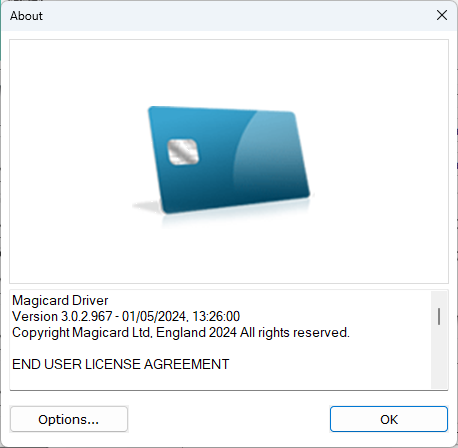
It is highly likely that machines with automatic Windows updates enabled will have the latest printer driver already installed.
Users with automatic Windows updates disabled can update the printer driver using the following steps:
- Disconnect printer USB cables
- Goto Settings > Devices & Printers > Right click and select 'Remove Device' on all instances of the DoH 300 or Magicard printers.
- Check for and uninstall old printer drivers if they are present, and reboot machine only if old driver versions were present.
- Download and install the latest Magicard printer driver. Right click on the file magu.inf select 'Install'.
- Go to Settings > Devices & Printers and then connect the printer USB cables.
- Allow the printer to install automatically - you will see a new DoH or Magicard printer appear.
- Check printer status to verify installation and make sure the printer is in an operational state.
- Additional printers will automatically install once connected to the Registration Authority workstation.
Firmware updates
Firmware updates allow devices to continue operating efficiently and securely. Check the printer status section to identify the firmware version of your printer.
Find the latest firmware and installation instructions for the DoH 300 (V2).
If your printer needs a firmware update you should download the .PRN file and send it to the printer using the following steps:
Printer Properties -> Tools -> Print *.PRN -> (browse to the PRN file) -> Print
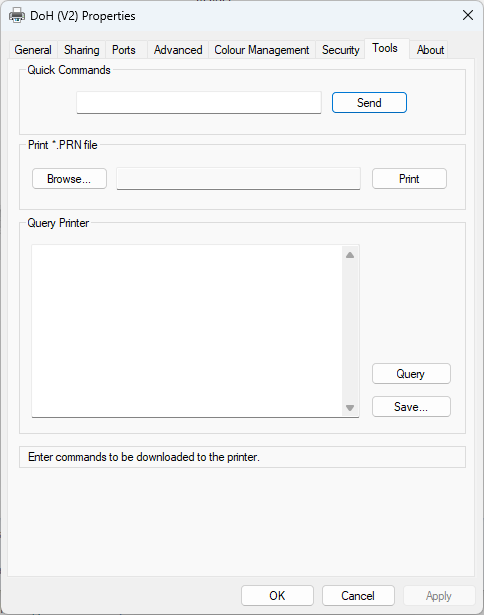
The printer LCD screen should change colour to signal that an update is in progress. The process takes approximately 1 minute to complete. Do not power off the printer during the firmware update.
Card feeding options
It's best to use the rear card feeding mechanism, but you can change to the front card feeding mechanism by pressing the menu button on the printer and changing the relevant setting.
Printer care and maintenance
For optimal performance, we recommend you clean smartcard printers as regularly as every 3 months as the rollers can accumulate dust and cause card feeding issues. Using the rear plastic hopper helps to reduce dust build up as the rollers are better protected. Read information on ordering cleaning consumables.
Watch a video on how to clean your Magicard DoH 300 (V2) printer.
Printer warranty (servicing and repairs)
NHS Digital printers (DOH models only) purchased via NHS England’s supplier SCC come with 5-year warranty from the date of purchase.
Input the serial number of your smartcard printer on the Magicard support site to check the warranty status.
If after troubleshooting you believe that the printer has a mechanical fault, please contact the SCC support desk at [email protected]
Organisations who purchase printers from independent suppliers must obtain their own warranty/service contract.
Smartcard printer and consumable orders
Find out how to order smartcard printers and consumables.
Troubleshooting
See our dedicated page on troubleshooting smartcard printers.
Find solutions for all Magicard printer error codes.
Last edited: 9 June 2026 5:11 pm