Overview
The National Disease Registration Service (NDRS) has worked with NHS trust providers to produce an excel data view template to assist with the data collection for the COSD dataset. For users of the Somerset Cancer Registry system as their trust cancer management software, the SCR COSD data view template is available. This template is designed to give an overview of data completeness on a per-patient-per-tumour level. The completeness statistics within the document are to be considered as a guide.
The 2026 COSD template once setup will involve data related to all recorded primary cancers dated between January 1st 2026 & December 31st 2026.
Functionality
If you are a trust who has used a NDRS dataview template in previous years you will need this to setup the 2026 COSD dataview template (due to changes within excel itself). If you are a first time user of the NDRS COSD Dataview template(s) then please proceed with the downloading of the ‘00R – Other Systems COSD Dataview’ and its setup guidance from the NDRS website.
Pre-setup requirement
1) An active ODBC connection must be setup to allow data from the Somerset Cancer Registry to populate the excel template. Please review the guidance from SCR on setting up an ODBC connection.
2) Load up the previously used NDRS data view from your trust files.
3) Within the previously used document navigate to one of the yellow NDRS tabs & navigate from the top-menu: Data > Properties
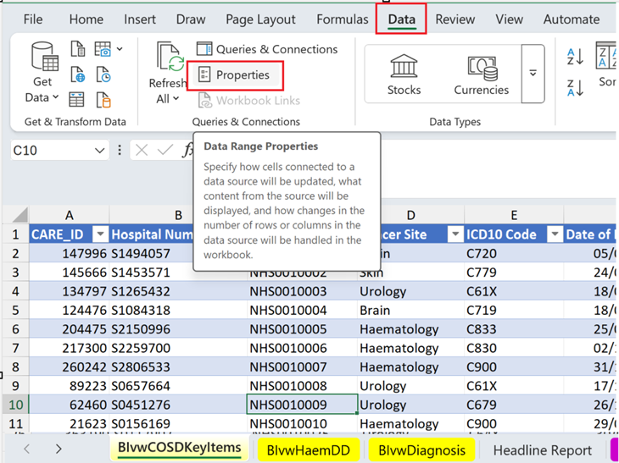
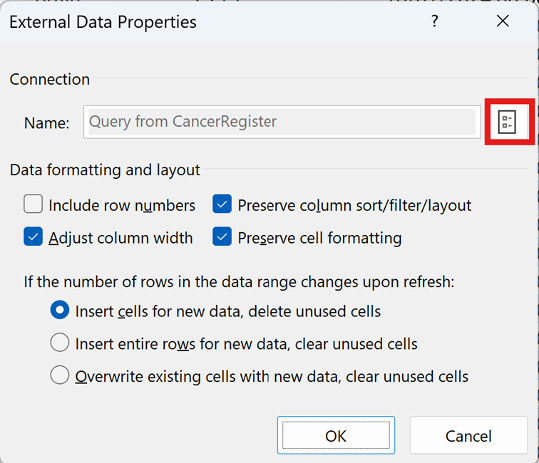
4) The ‘external data properties’ pop-up will appear, click on the ‘connection properties’ icon:
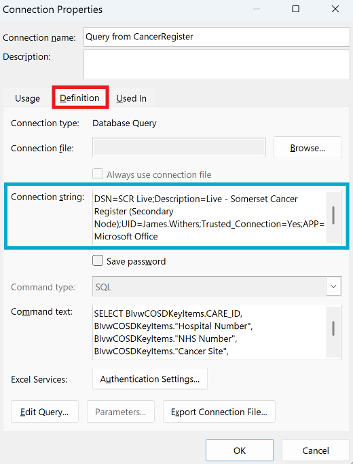
5) Navigate to the ‘Definition’ tab and select all text in the ‘Connection string’ text box (Ctrl + A then Ctrl + C)
6) Open the new 00R – SCR COSD 2026 Dataview template.
7) There are three yellow tabs within the template.
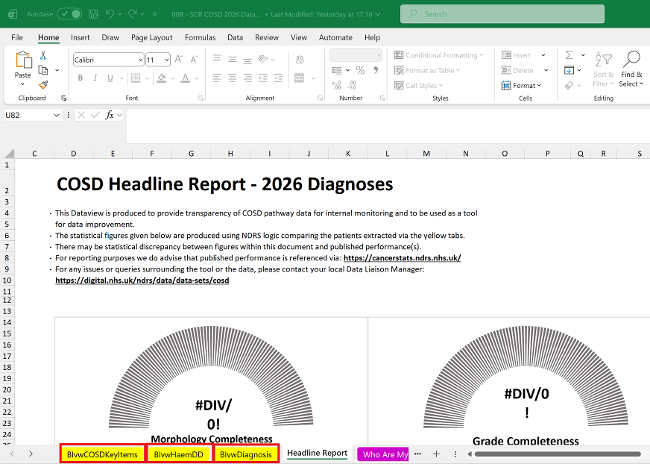
Each yellow tab requires the connection string to be entered. The process for doing so is:
* Data > Properties > Connection properties > Definition
Delete the existing default ‘connection string’ and paste in you’re the connection string code from your old NDRS data view template.
Click ‘OK’
8) Once this has been done for all three yellow tabs the document will be linked to the information within the Somerset Cancer Registry software.
9) To get data to flow into the template navigate to: Data > ‘Refresh All’
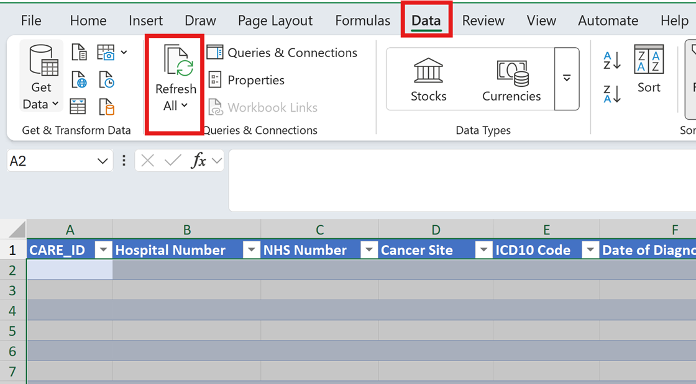
10) After a small duration all applicable data will flow into the data view template.
Using the template
To refresh the data at any time within the template repeat step 9. This will show the real time data as it is recorded within the SCR system.
There is the opportunity to ‘right-click’ and select the ‘hide’ option for the three yellow tabs within the document if you wish. This will not impact your ability to refresh the data.
The headline report tab is designed to give you an overview on some COSD key metrics: Diagnosis Morphology, Diagnosis Grade, Staging, performance status and CNS indication code. The reports on this tab are a guide to completion rates for those data items.
The ‘Who are my patients’ tab is a series of 5 pivot tables aligning to those key data items. On initial setup the pivot tables will need the correct options selecting to correctly display your data. The filter options are required to match the criteria listed for data to be displayed correctly:
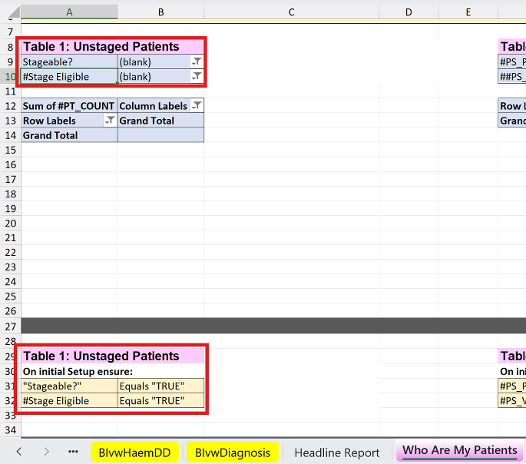
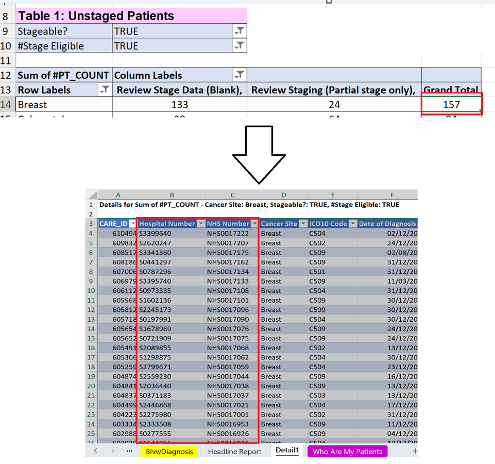
Once setup each pivot table will give you patient-level details of who the patients are with missing data. To discover this level of information navigate to the appropriate pivot table within the ‘Who are my patients’ tab and double click the number (either the ‘Total’ field or the number next to the appropriate speciality):
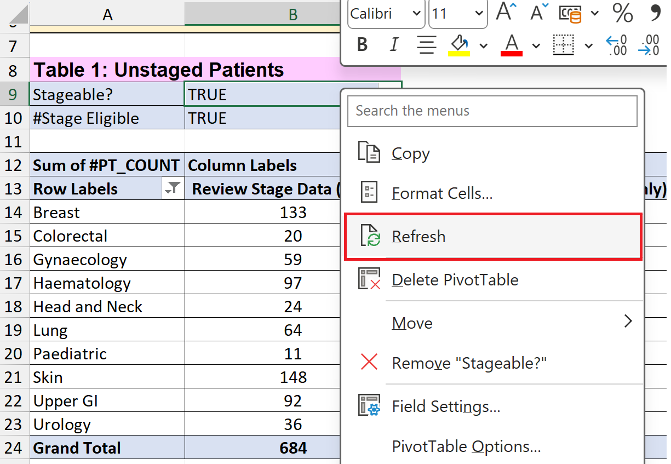
Following every refresh of data (via step 9 within this guide) it is advised that all pivot tables are also refreshed via navigating to each one and ‘right-clicking’ selecting ‘Refresh’ over each table:
Last edited: 30 June 2026 9:26 am
