Part of Secure Electronic File Transfer (SEFT) WoVEn users quick help guide
File transfers (downloads or uploads)
Once you have logged in you will see the WoVen file transfers that have been set up for you.
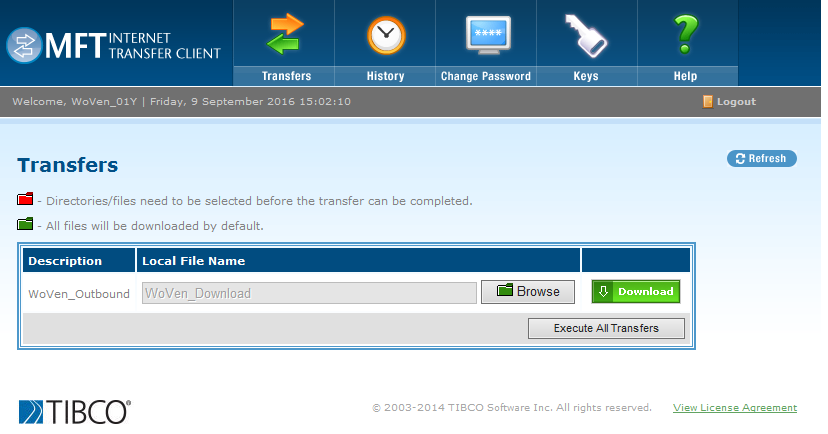
If you are downloading WoVen data, the download screen should look similar to the image below.
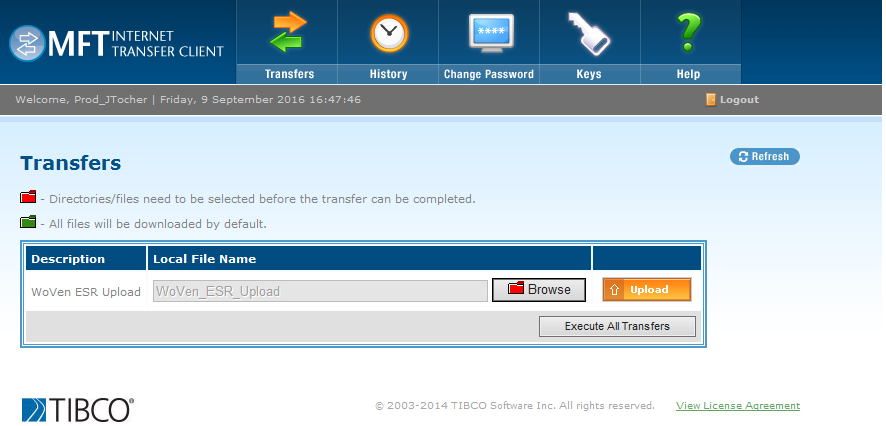
If you are uploading WoVen data, the Upload screen should look similar to this screen.
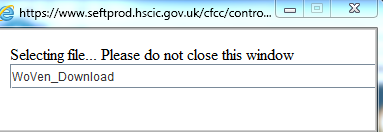
Click on the browse button and you will see a selecting file screen.
You will see a security warning.
Tick the I accept the risk and want to run the application box and then click run.
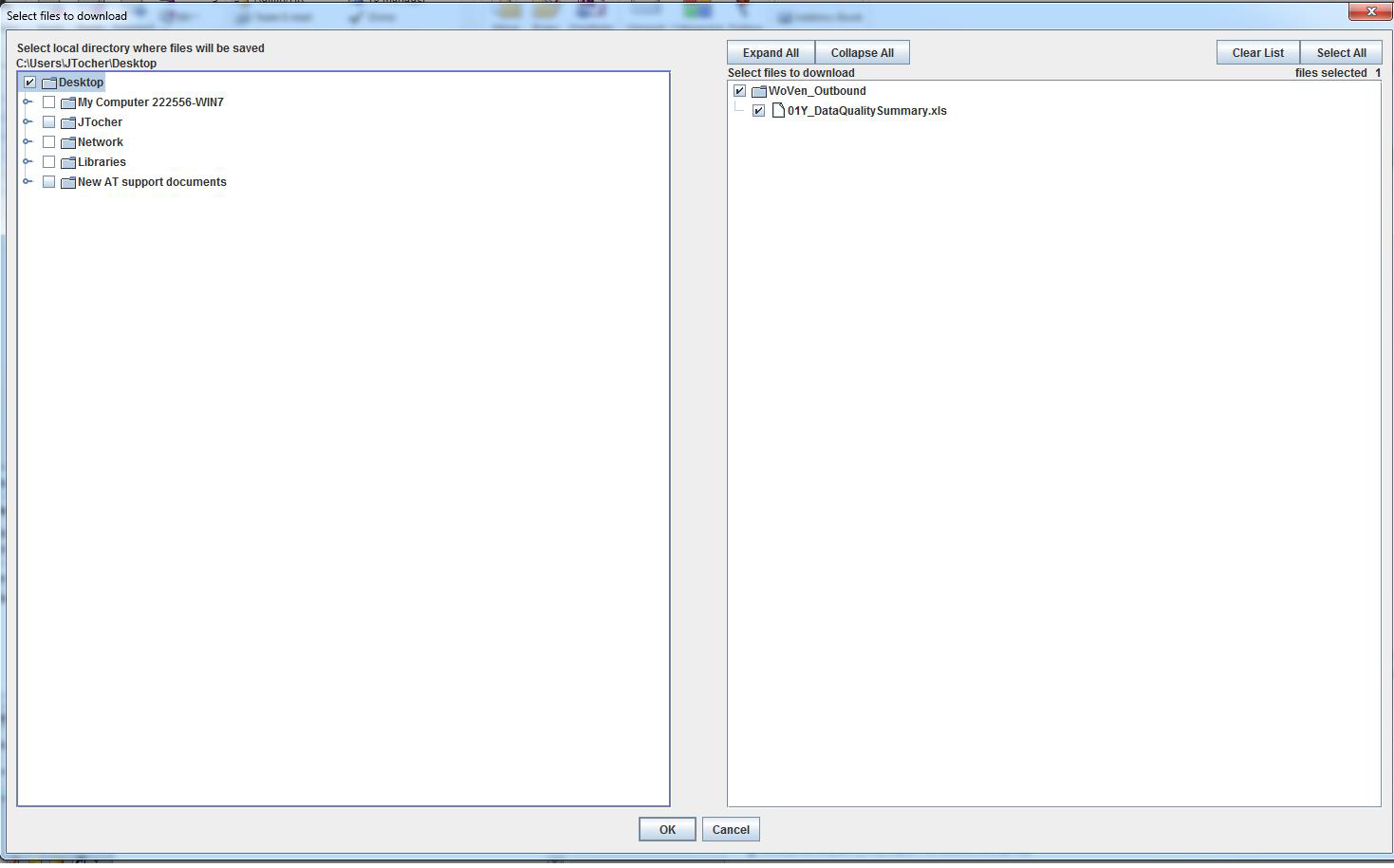
On the Select Files screen, the left hand side shows the folders on your computer and the right hand side shows the SEFT folders.
Last edited: 7 October 2024 5:07 pm