Prospective record access manually enabling patient access
Practices are contractually obliged to provide full prospective record access to all patients (aged 16 and above), unless exceptions apply or if the patient has informed the practice that they do not, or no longer, wish to have access. This guide explains how to manually enable individual patients and how to identify when patients join the practice or create a new NHS App account so that access can be granted.
Using these instructions
These instructions are intended to support practices that need to manually enable prospective access for their patients. Examples of EMIS practices that may need to follow these instructions include:
- practices that did not use the automatic bulk enablement function provided centrally by NHS England and EMIS (now no longer available)
- practices that used the central bulk enablement function but had applied the SNOMED 104 code to patients that now require access
Before using these instructions, we recommend that practices review their usage of the SNOMED 104 code (as it can cause issues when the patient changes their registration to a new practice). Where a practice has bulk applied the SNOMED 104 code to records it is recommended to bulk apply the SNOMED 106 code (which will effectively cancel the 104 code) and reapply the 104 SNOMED code only where safeguarding concerns exist.
Approach to enabling access
Manually enabling prospective access can be a time consuming process. Ultimately, a practice will have to:
- complete the steps in 1.EMAS manager organisational configuration
- for each individual registered patient (unless an exception applies) configure their access as defined in 2.Granting access to individual patient record
Practices need to prioritise enabling those patients that already have an NHS app account first. Once complete, practices will need to regularly review (at least weekly) those patients that have created new NHS App accounts and configure their access rights appropriately.
Practices will also need to have processes whereby they can identify newly registered patients and review their access rights and check the record access of all patients to ensure contractual compliance.
The images used on this page have been created using a demonstration system and do not include any identifiable information.
1. EMAS Manager organisational configuration
To configure the organisation preference for online services patient record access.
1. Access System Tools > EMAS Manager.
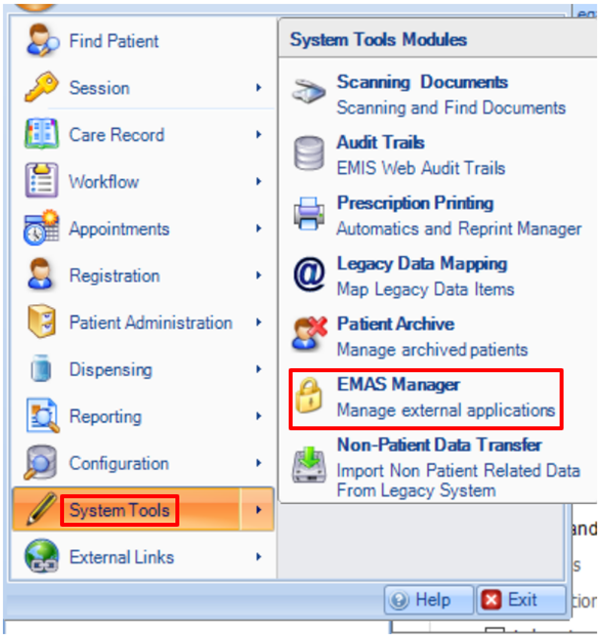
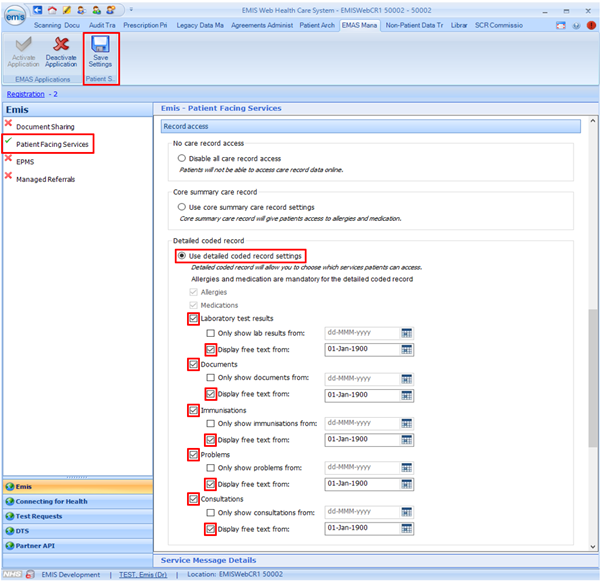
2. Select Patient Facing Services.
3. Scroll down to the Record access section.
4. Click the option button alongside Use detailed coded record settings.
5. Ensure the checkbox alongside each of the five sections is ticked.
(Laboratory test results, Documents, Immunisations, Problems, Consultations)
6. In each of the five sections:
- ensure the Display free text from checkbox is ticked with 1/1/1900 in the date field
- if you had to make any changes, click Save Settings
2. Granting access to individual patient record
To manually enable individual patients prospective records access:
1. Access the required patient.
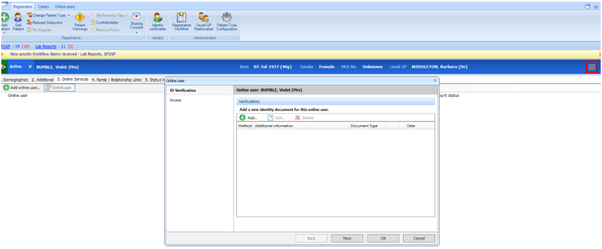
2. Click the OS icon in the precis bar.

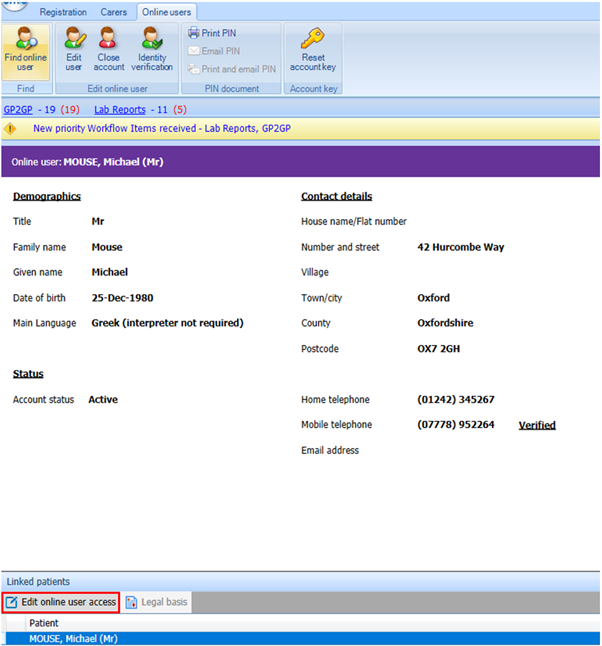
If the patient has an online account:
- EMIS will open the Online user screen
- select the patient in the Linked patients section
- click Edit online user access.
If the patient does not have an online account:
- EMIS will display the Online user dialog box
- select the Access page
In either case:
- scroll down to the Record access section
- enable the Detailed coded record section by clicking the Use detailed coded record settings option button
- enable the Show all from option and enter the required date (this will usually be the date the patient requests prospective access)
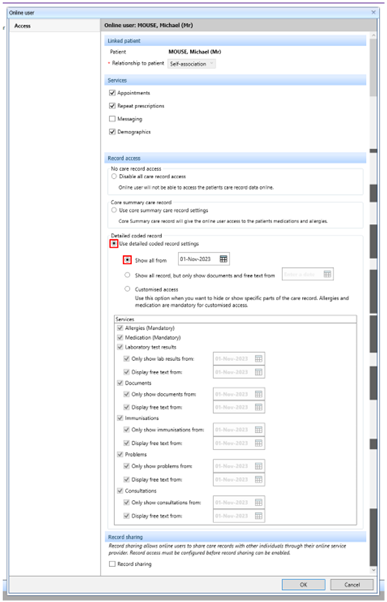
3. If the patient already has some record access, you may wish to customise rather than use the full DCR option.
4. The patient will need to complete their authentication process for the NHS App if not done so before.
3. Find new NHS App users
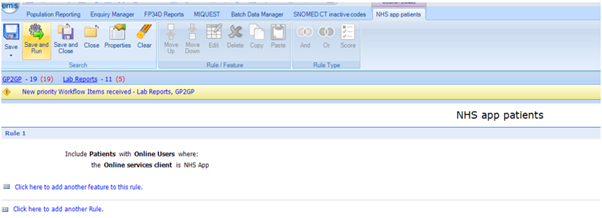
Regularly run a report to identify patients who have recently created a new NHS App account for themselves. Where a patient has recently created an NHS App account you will need to review their access rights and ensure that they have access to their prospective record (by completing step 2. Granting Access to Individual Patient Record) as soon as possible.
You can search for patients who have registered via the NHS App and successfully undergone the digital identification process.
Create a search for Online users whose Identity Verification method is Citizen Identity and run this report regularly (for example at least weekly).
4. Review all patient access
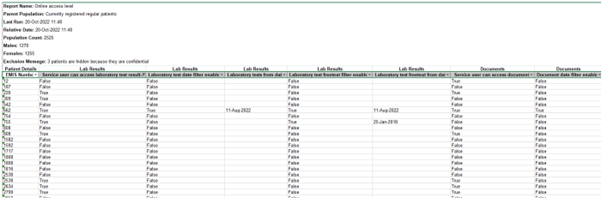
To understand the current level of access each patient has and evidence the practice’s compliance with contractual requirements, it is advised to regularly run this report and enhance access for patients that do not have full prospective access.
The attached report will find the level of access (if any) for each registered patient. You cannot open this file outside of EMIS please save it (to your desktop or a network drive) and then import it into a suitable folder in your EMIS Population Reporting module.
When it has Run, View Results then Export to a suitable network location (as it contains patient identifiable data) as a CSV file.
There will be up to four checkboxes on the Export Report dialog box. Select the second one before selecting all the others.

The report gives the EMIS number of the patient, then five columns for each of the five online access areas, showing whether the patient has any access, and if so, from what date.
5. Review individual patient access
Reviewing patient SNOMED codes for newly registered patients to identify whether access should not be granted.
The attached protocol will indicate the latest of the five PRA codes (if any) on a patient record, which might be useful for newly registered patients to determine if their previous practice had intended to or had completed a record review.
The Display Text version will display a text box on the patient record, and the Alerts version will add an entry to the (pink) Alerts box.
The protocol has been designed to be run manually, after a newly registered patient has had their incoming GP2GP record filed, but it can be run on any patient and you may wish to automate the protocol to run whenever a patient record is loaded, for example.
Contact your IT training and support provider if further assistance is required.
Last edited: 20 December 2023 3:10 pm