A guide to importing .csv files into Excel
Opening the GPDfPR reference file in Excel.
Excel’s auto formatting rules
It is important to understand that Microsoft Excel applies autoformatting rules when opening files. This often results in data loss due to the display limit.
If the number entered is more than 11 digits, it is automatically expressed in scientific notation.
If the number entered is more than 15 digits, all digits starting from the 16th digit are converted to 0 (causing data loss) and cannot be recovered. This can cause problems when these numbers are codes being used for analysis and linkage.
Excel can accommodate long strings of numbers, but you must format them to display as text to prevent data loss.
The GPDfPR reference file
The GPDfPR reference file contains clinical codes including SNOMED and Read codes which are listed in the dataset without any descriptions or additional context.
Do not open the reference file as a .txt or .csv file using Excel because this can lead to the final digits of SNOMED codes being converted to zeros by auto-rounding rules.
SNOMED codes can be up to 18 digits long and the autoformatting functions in Excel will treat the SNOMED codes as scientific or numeric values rather than text.
The code is then no longer correct and will not link correctly to the GPDfPR data tables.
Data loss opening directly in Excel
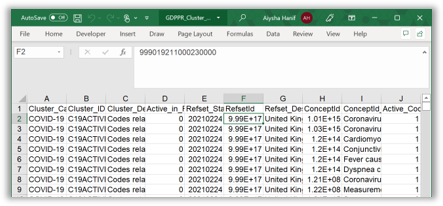
The first screenshot shows how Excel displays the SNOMED code and the data loss that occurs when you open the file directly in Excel.
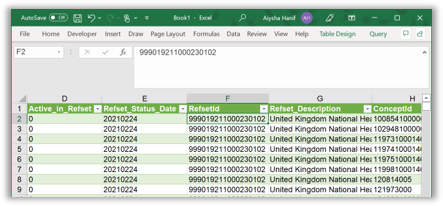
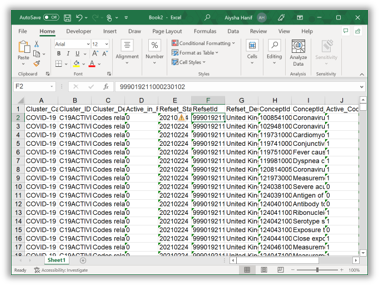
The second screenshot displays the same field, but it has been imported into Excel without data loss.
This guide will work through the process to import the data into Excel so it loads correctly.
Downloading the file
The clinical codes in the GPDfPR reference file can be downloaded from General Practice Extraction Service - Data for planning and research: a guide for analysts and users of the data
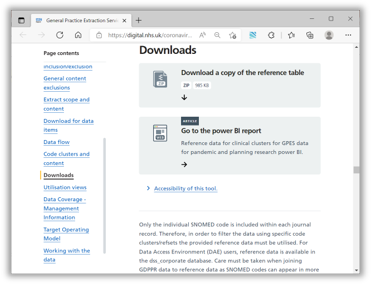
You can navigate to it in the page contents by clicking on the dedicated Download button section as shown in the screenshot.
Option 1 - Opening the file from the browser
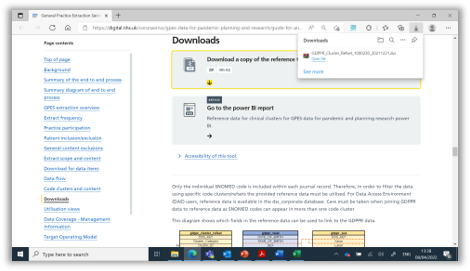
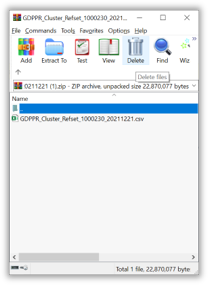
When you click on the download you should see the option to Open file from the browser as shown in the first screenshot.
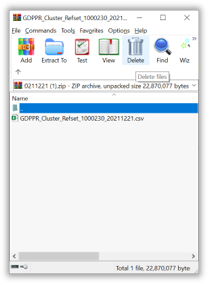
This will open the zipped folder as shown in the second image.
Option 2 - Opening the file from downloads
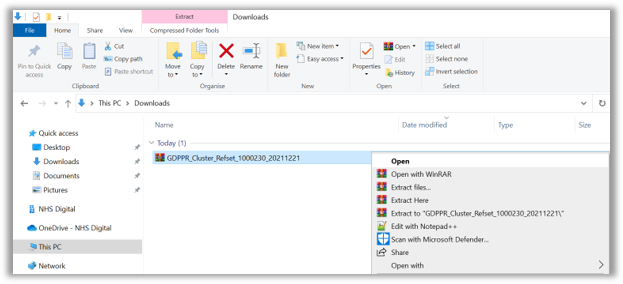
Another way to open the zip file would be using File Explorer, navigate to the Downloads folder as seen below and double click on it/right click and Open.
save the .csv file from the zipped file
Open the zipped file from your downloads and save the reference file file in an accessible location.
There are 3 ways to do this explained in the 3 options below.
Option 1 use the extract to
1.Select the file by clicking on it once.
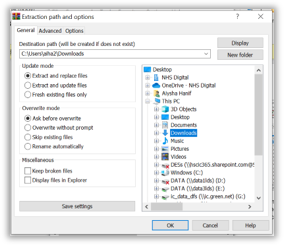
2.Click on extract to which will load the options screen, seen in the first image below.
3.Select the location you want to save the file, in this case you can see downloads has been selected.
4.Click ok to complete the process.
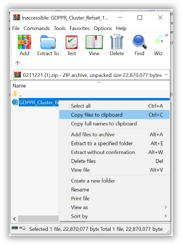
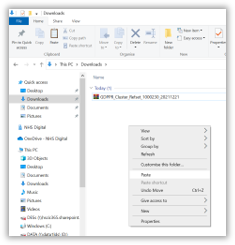
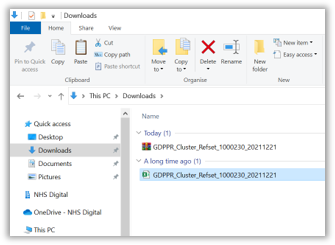
Option 2 Copy files to clipboard
1.Select the file by clicking on it.
Option 3 - Drag and drop
Open Excel and begin the import
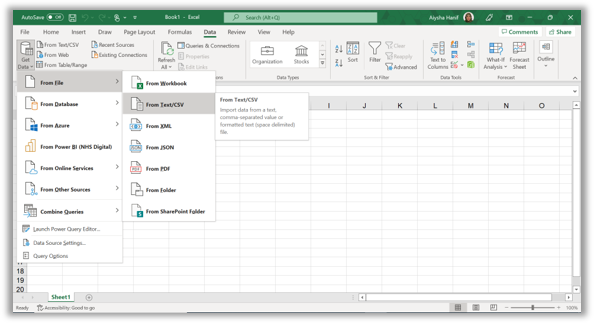
To import the reference file into Excel go to the Data tab on the menu ribbon > Get and Transform data > From Text/CSV.
Select the file
Browse to your file location and then select the file and click import.
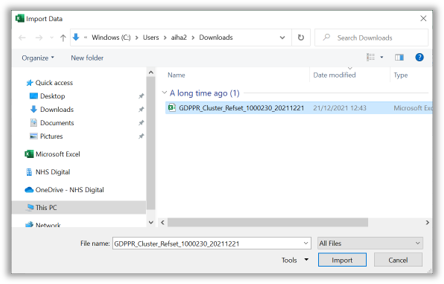
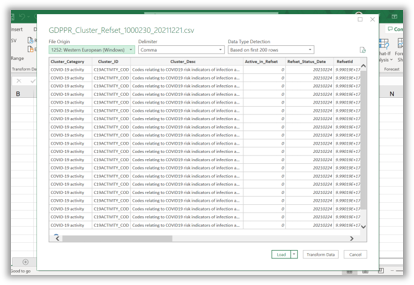
Transform the data
The window will open to show a summary of your data columns.
Click the Transform data button.
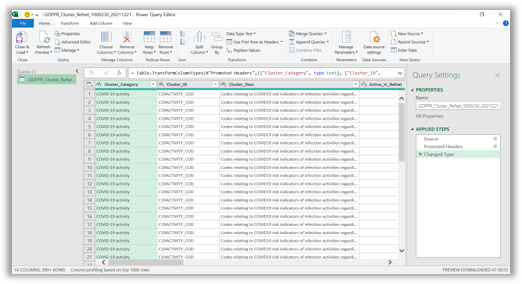
Power query editor
The Power Query Editor will load and show the applied steps column on the right-hand section of the screen.
Click on the cross next to the Changed Type applied to delete this step. This is very important for the data to import correctly.
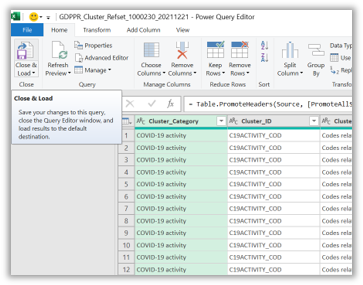
Final step
Click on the Close and Load in the top left corner to import the data into Excel.
Import completed
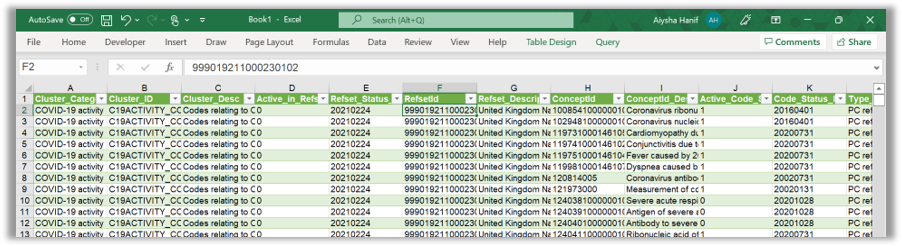
You should now see a file like the screenshot below (you will need to scroll along to the RefsetId and ConceptId with the SNOMED codes visible in the correct format. The import is now complete.
Other ways to work with SNOMED codes
Formatting cells as text in Excel
You may want to paste SNOMED codes into Excel from another location.
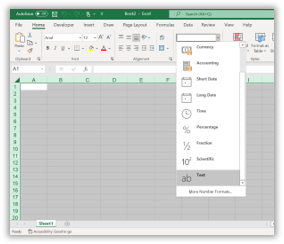
In this instance select the relevant destinations cells (the screenshot below has selected all the destination cells) in Excel and change the format to text before pasting the data.
If you paste it and then change the format it won't work as the data will have been corrupted.
Pasting values as text into Excel
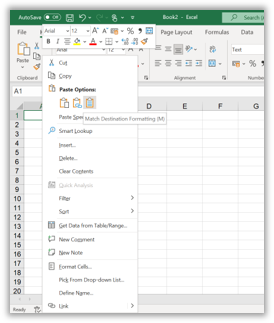
The data should then be pasted as values matching the destination formatting.
Watch the video
We have also created a video which explains how to import .csv files into excel.
Last edited: 8 June 2022 3:41 pm