GP Appointments Data dashboard – national category mapping guide
This guide provides information around how to make best use of the practice level GP Appointments Data dashboard to support accurate mapping of national categories to appointment slots within general practice appointment books
Purpose
NHS England has issued guidance around the approach to mapping of national categories within GP Appointments Data (GPAD), following the announcement of the 2026/27 GP Contract including the requirement that patients identified as clinically urgent will be dealt with on the same day.
This guide provides information around how to make best use of the practice level GP Appointments Data dashboard to support accurate mapping of national categories to appointment slots within general practice appointment books. It is designed to complement the more detailed guidance available to support users of the dashboard more generally.
Accessing the dashboard
The GPAD dashboard provides information about scheduled activity and usage of GP appointments at practice level. The aim of the dashboard is to inform users about activity in their own practice and the impact of seasonal pressures for management information.
The dashboard provides a range of analysis including:
- breakdowns of appointments by national category, status, mode, health care profession (HCP), time from booking to an appointment, and a number of other areas
- a 'Data Quality Summary' page to highlight data quality issues
- a 'national categories cross tab' along with metrics showing mapping progress to date
- the ability to download data for further analysis
It's only accessible via NHS smartcard. Data is updated weekly, with the most recent 4 weeks of data shown by default for each practice.
Suggested action
Ensure your practice uses the dashboard. More information on the dashboard, including how to access it, is available at GP Appointments Data Dashboard.
Understanding of national category mapping for a practice within the national GPAD data
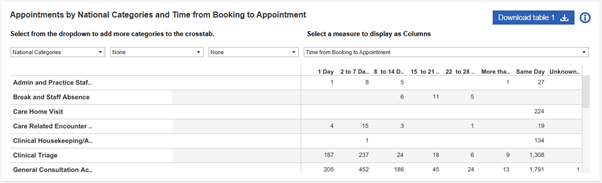
The dashboard provides a view of the number of appointments mapped to each national category, cross tabulated with the time from booking to appointment.
1. To access this view, click on the 'Appointment details' page within the 'Appointment metrics' tab.
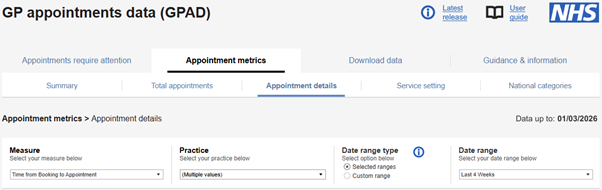
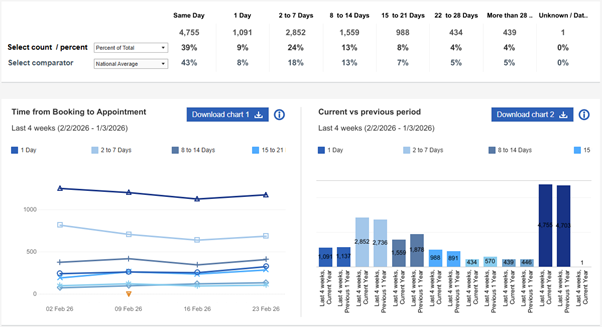
2. Changing the value in the 'Measure' dropdown to 'Time from Booking to Appointment' updates the tables and charts with a breakdown of time from booking to appointment data for the practice.
3. After scrolling to the bottom of the page, update the dropdown selections so that the table shows a cross tabulation of 'National Categories' by 'Time from Booking to Appointment'.
Suggested action
Review the analysis of 'National Category' by 'Time from Booking to Appointment' to gain an understanding of the breakdown of your practice appointments, based on how appointment slots have been mapped within the appointment book and whether this is in line with your service.
Example 1
A low proportion of appointments mapped to the 'General Consultation Acute' category for a practice that provides care for clinically urgent patients may suggest this category is not being used appropriately.
Example 2
A high proportion of appointments mapped to the 'General Consultation Routine' category taking place on the same day may suggest clinically urgent activity is being booked into slots mapped to non-acute national categories.
Use the dashboard download functionality to identify incorrectly mapped appointments and correct the mapping in your appointment book
The dashboard allows users to download data from the last 4 weeks at individual appointment level as an excel or CSV file. The download contains all available data fields for each appointment including details of when each appointment was booked and took place, the (free text) appointment type as recorded by the practice, the national category, a field highlighting whether appointments require attention (potential data quality issue) and necessary identifiers to link back to records in a practice appointment book.
To access this view:
1. Click on the 'Last 4 weeks raw data' page within the 'Download data' tab.
2. Select your 'Practice' and whether you would like to filter on and individual data quality issues (select 'All') in the relevant dropdowns.
3. Download the data using the 'Download table' button above the table. We recommend you select CSV as the download file option when prompted.
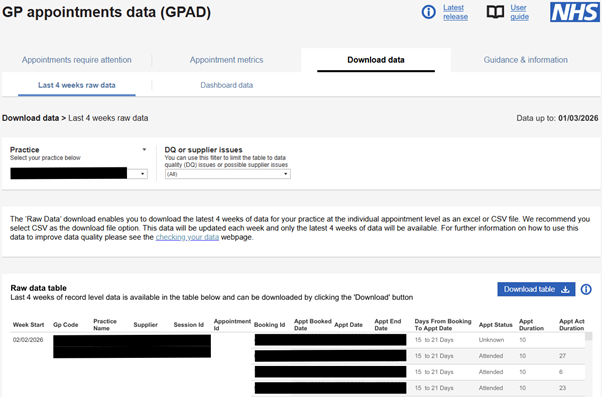
4. Open the file in Excel and add a filter to the column headers to enable filtering on the following columns to identify groups of appointments that may need attention.
- 'Appt Booked Date', 'App Date' and 'Days From Booking To Appt Date' to identify the time from booking to appointment for each appointment.
- 'Appt Type' to identify the free text slot type assigned to each appointment slot when creating the rota in the practice appointment book (this is not published in GPAD).
- 'National Slot Type' and 'National Slot Type Group' to identify the national category mapped to each appointment slot. National Slot Type Group is the national category included in the publication and includes 'Inconsistent Mapping', which is created when an appointment has been mapped to an administrative national category, but other information (such as an appointment was attended) suggests that the appointment was not administrative.
- 'DQ Issues detailed' to identify potential data quality issues identified by the dashboard.
- 'Session Id', 'Appointment Id', 'Booking Id' to link information for individual appointments back to records in the practice appointment book.
5. Use this file to identify appointments that may not have been mapped correctly as per the suggestions below. Use the appointment identifiers to link back to individual appointments in the appointment book to correct any required national category mappings for future appointments.
- Filter appointments mapped to the 'General Consultation Acute' national category (National Slot Type Group) that did not take place on the same day (Days From Booking To Appt Date) to identify appointments that may not have been clinically urgent and therefore should have been mapped to an alternative category.
- Filter appointments that took place on the same day (Days From Booking To Appt Date) that were not mapped to General Consultation Acute (National Slot Type Group) to identify appointments that may have been clinically urgent but may have been incorrectly mapped (such as clinically urgent patients booked into an available planned appointment slot without updating the national category.
- Filter appointments that were 'Inconsistently Mapped' (National Slot Type Group) to identify appointments that were mapped to an administrative category, but other information (such as appointment was attended) suggests that the appointment was not administrative.
- Filter appointments that were 'Unmapped' (National Slot Type Group) to identify appointments that were not mapped to a national category. Note that there is a known issue within TPP appointment books where ‘squeeze in’ appointments are not assigned a national category.
- Refer to the complete national category mapping guidance to aid understanding of appropriate mappings to use for different types of appointments.
Suggested action
Download your dashboard data and identify appointments that may not have been mapped correctly. Use the appointment identifiers to link back to individual appointments in the appointment book to correct any mappings.
Last edited: 16 March 2026 4:24 pm